
What Is a PNG File? History, Features, and When to Use It
Merlin walks through PNG history, lossless compression, transparency, real workflows, and when to reach for JPG, WebP, or HEIC instead.

Merlin writes SwiftSave's image format guides and has spent 8+ years working with web image workflows. He tests conversion flows with screenshots, logos, and phone photos, then documents practical tradeoffs: what stays sharp, what gets smaller, and what breaks in real app handoffs. Contact: [email protected].
Images in this post are generated with AI.
You probably have PNG files sitting in your downloads folder without giving them much thought. Laptop screenshots. A logo someone emailed you. A product photo with the background removed. A few UI icons from a side project. PNG feels boring until you save the same graphic as JPG and watch a transparent logo turn into a white rectangle on a dark header.
I have watched people make that mistake in real meetings. They are not careless. They are busy. The upload form says "image," they pick the smallest file, and the format is wrong for the job. PNG exists because some images need sharp edges, readable text, and real transparency. It is not the universal answer, especially not for big camera photos, but it is still one of the most reliable formats for everyday graphics work in 2026. For the authoritative technical definition, see the W3C PNG specification.
What is a PNG file?
PNG stands for Portable Network Graphics. The usual extension is .png. It is a raster format, which means the picture is stored as a grid of pixels. That sounds basic, but the important part is what PNG refuses to do: it does not throw away detail the way a typical JPG save does. PNG compression is lossless for the pixel data people care about in screenshots and logos.
You can open a PNG in almost any browser, phone, desktop tool, CMS, or office suite. That wide support is a quiet advantage. You rarely have to explain what a PNG is to a client. You sometimes have to explain why their "small" PNG is still five megabytes, but that is a different conversation.
PNG fits graphics where edges and text matter and transparency should survive the export. Vacation photos are often a poor fit because PNG keeps detail you will not miss on a phone screen, so the file swells for no good reason.
A short history of PNG (and why it still matters)
PNG showed up in the mid-1990s during an awkward moment for web images. GIF was everywhere, but the compression technology behind GIF was tangled up in patent concerns. Developers wanted something open, predictable, and safe to implement in browsers and tools. PNG was the answer: a format meant for networked graphics, not for film negatives.
The first PNG specification work went public in 1995, and the format became an official W3C recommendation later. GIF did not vanish overnight, partly because GIF animation had already become a habit, and habits move slowly on the web. Still, PNG became the normal choice for static graphics that needed better color handling than classic GIF allowed.
That history still shows up in how PNG behaves. It was never designed to be the smallest possible photo container. It was designed to be clear, lossless, and flexible for graphics. When you export a screenshot as PNG today, you are using the format roughly the way the authors intended.
How PNG compression works (without the math)
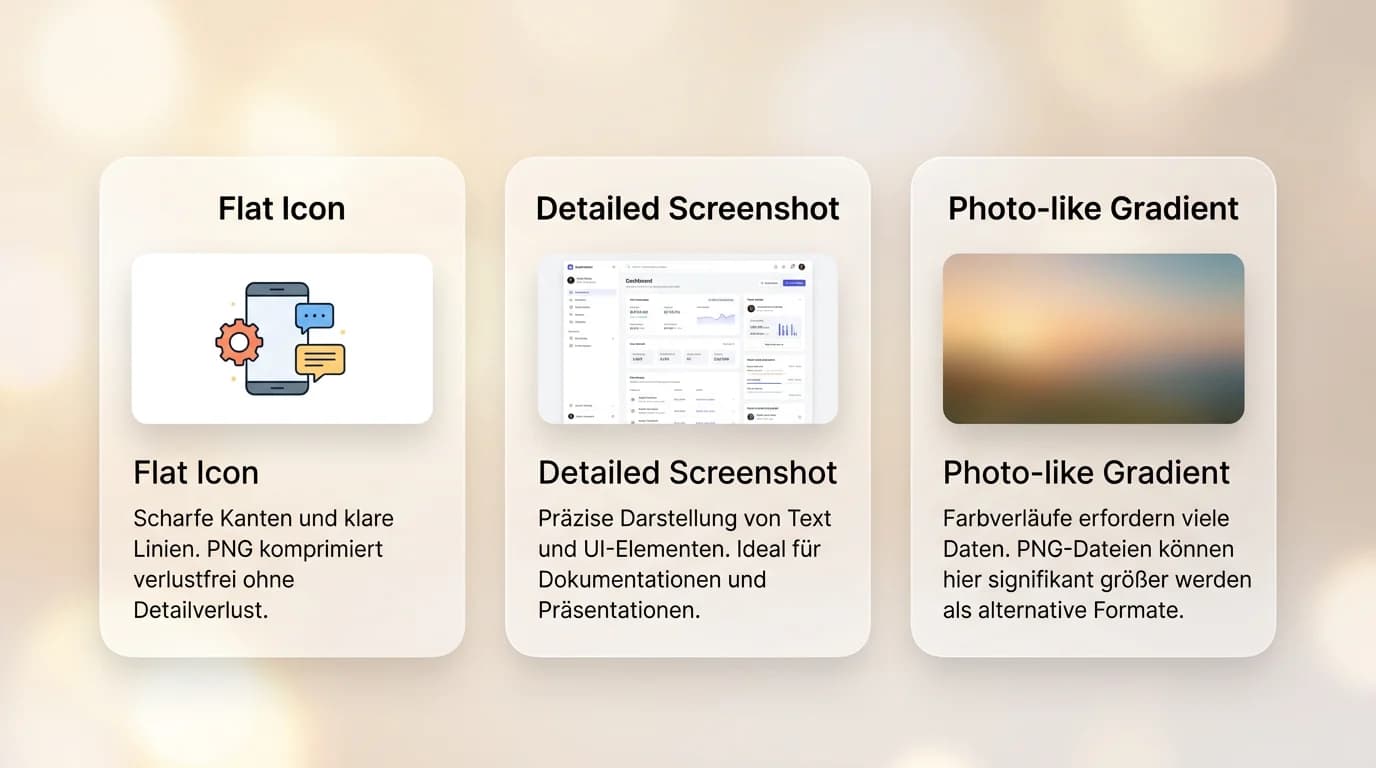
Lossless compression means you can save, reopen, and save again without PNG shaving off invisible detail the way JPG does. That matters when the image contains tiny text, thin lines, or flat color regions. A PNG screenshot of a spreadsheet cell boundary tends to stay crisp. A JPG screenshot of the same area can pick up fuzzy halos around letters after aggressive compression.
The tradeoff is file size. A detailed photo contains millions of small color changes. PNG tries to compress them faithfully, which often produces a larger file than a sensible JPG or WebP export. That is not a bug. It is the cost of keeping every pixel exactly where you left it.
Transparency that survives export
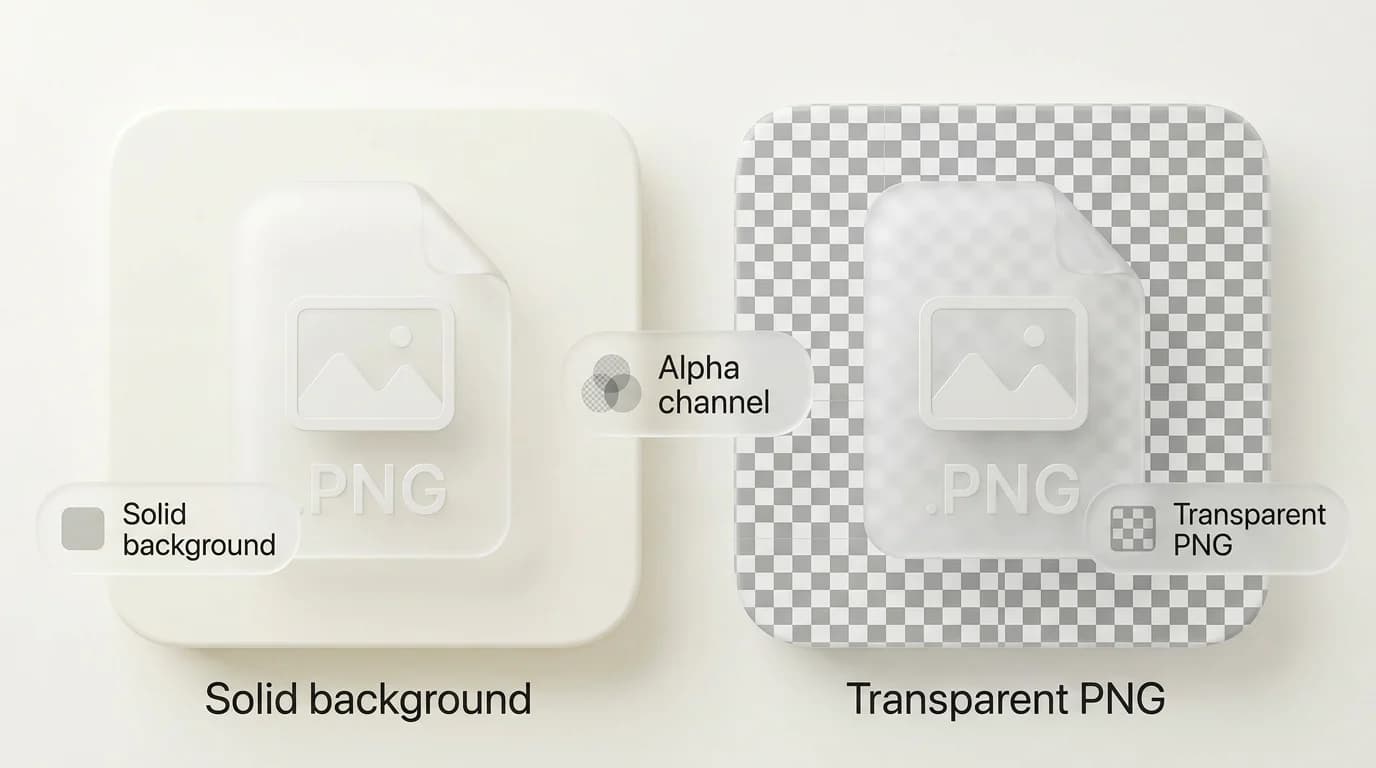
PNG can store an alpha channel, which is a fancy way of saying transparency can be gradual, not just on-or-off. That is why logos and product cutouts look natural on top of photos, gradients, and dark mode interfaces. JPG cannot do real transparency. If you convert a transparent PNG to JPG, those transparent pixels become a solid color, usually white. The result can look fine on a white webpage and ridiculous everywhere else.
Color depth compared with old GIF limits
Classic GIF is limited to 256 colors per frame. PNG can carry truecolor images with far richer palettes. That is one reason PNG took over for detailed screenshots and interface graphics. You get sharp edges without the banding you sometimes see when a complex gradient gets squeezed into a tiny color table.
Where PNG still wins in 2026
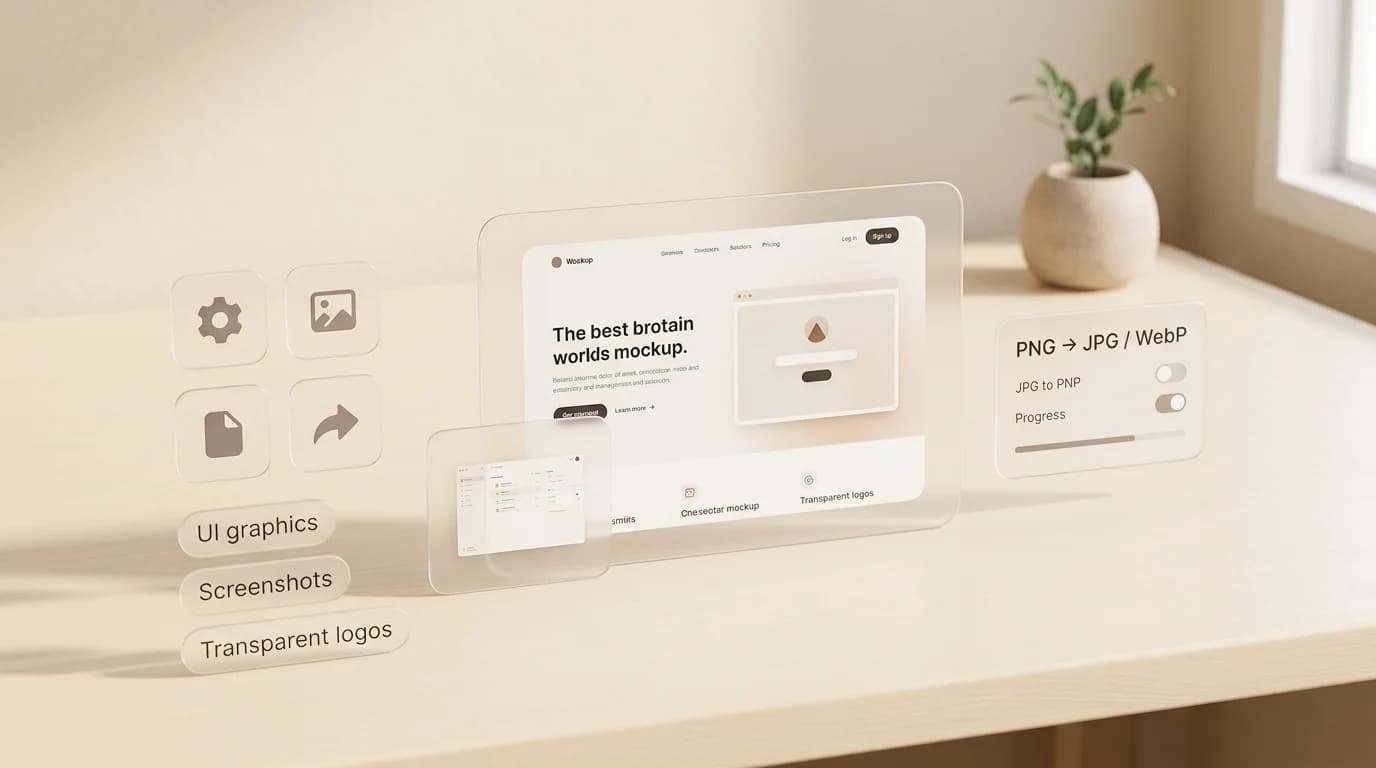
WebP is common now, and HEIC shows up constantly on iPhones, but PNG remains the safe interchange format for static graphics. If you need a file that opens everywhere, reads cleanly, and keeps transparency intact, PNG is still hard to beat.
Good at
Weak at
If you are unsure, ask what would look bad first: a little softness around text, or a bigger download. For a checkout screenshot, softness is expensive. For a background photo, file size is expensive.
When PNG is the wrong format
PNG becomes the wrong answer when nobody needs perfect pixels and everybody needs a smaller file. I have seen product pages where every lifestyle photo was exported as PNG because someone thought PNG meant "high quality." Quality is not the same thing as file size. Those pages load like they are carrying bricks.
For ordinary camera photos, JPG is often visually close and much smaller. For modern websites, WebP frequently beats both on size while still supporting transparency in many cases. When you need a smaller sharing copy and transparency does not matter, try our PNG to JPG tool. When you want a web-first image that stays smaller than PNG, try PNG to WebP.
Apple users sometimes end up with HEIC photos that refuse to open in older Windows apps. If your pipeline wants PNG for editing or transparency work, HEIC to PNG is a common first step before you touch anything else.
PNG compared with JPG, WebP, SVG, and GIF
Formats make more sense when you compare jobs instead of treating one of them like a moral winner. PNG is great at precision. JPG is great at small photos. WebP is great at modern web delivery. SVG is great when you truly have vectors. GIF still wins at short looping memes even though it is an old format.
| Format | Compression | Transparency | Best use case | Typical size (1920x1080) |
|---|---|---|---|---|
| PNG | Lossless | Yes (alpha) | Screenshots, logos, UI cutouts | 850 KB (screenshot) |
| JPG | Lossy | No | Photos and broad compatibility | 180 KB (same screenshot) |
| WebP | Lossy or lossless | Yes | Modern web delivery | 160 KB (same screenshot) |
| SVG | Vector | Yes | Logos/icons with shapes and text | 12 KB (simple logo) |
| GIF | Lossless (256-color) | Limited (1-bit) | Short looping animations | Varies by frames |
Real benchmark examples from routine files
People ask for numbers, so here are two practical exports I rerun when testing workflows. On a 1920x1080 spreadsheet screenshot with small text, PNG was 850 KB, JPG was 180 KB, and WebP was 160 KB. On a product photo on a white background, PNG was 320 KB, JPG was 85 KB, and WebP was 72 KB. Your exact numbers will vary, but the direction is consistent: PNG keeps precision while JPG and WebP cut file size hard.
PNG in real workflows: design, support, and documentation
Support teams live in PNG. A ticket arrives with a screenshot, and the goal is simple: the engineer should be able to read the error text without guessing. Sales decks use PNG for crisp icons. Ecommerce stores use PNG for logos on top of busy backgrounds. Documentation sites embed PNG diagrams because readers open them in browsers that do not always agree on newer formats.
When the workflow ends in a PDF handoff, PNG assets often travel inside the document. If you need several PNG scans or photos combined into one file, Image to PDF is a straightforward path for receipts, homework, or signed forms.
How to convert PNG files without losing the point of the format
- Start from the cleanest source you have. A screenshot of a compressed JPG is not a source, it is a headache.
- Decide whether transparency must survive. If yes, avoid JPG as the target.
- Pick the converter that matches the destination. PNG to WebP for many web cases. PNG to JPG when you only need a flat photo.
- Download the result, zoom in, and actually read any small text before you send it onward.
- Keep the original PNG if it is your master asset. Publish copies, not your only file.
SwiftSave runs supported conversions in your browser, which is what I want for ordinary private files: screenshots of invoices, pre-release UI, family photos I am not ready to upload to a random queue. You can jump straight to PNG to JPG, PNG to WebP, JPG to PNG, or WebP to PNG when a tool refuses a newer format. No account, no signup wall, just the conversion.
Practical tips I actually follow
Keep a master PNG when it matters
If you might edit the image again, keep the PNG. Every JPG resave can add subtle damage. That damage stacks. I am not saying JPG is bad. I am saying PNG is a safer archive format for bitmap graphics with text and lines.
Pick the background before you flatten
If you must convert to JPG, choose the background color on purpose. White is not universal. A white matte around a dark logo looks like a sticker. If you cannot pick a background that works everywhere, keep PNG or use WebP where the platform allows it.
Treat website images as two layers: source and published
My boring workflow is: keep PNG sources for UI and logos, generate WebP or JPG copies for the live site, and measure the page like a visitor on a slow connection. People bounce before they admire your lossless pixels.
PNG FAQ
Is PNG better than JPG?
Sometimes. PNG is better when transparency matters, when text must stay readable, and when repeated lossy saves would ruin the asset. JPG is better when you need smaller photo files and you do not need transparency.
Can PNG files be compressed further?
Yes, PNG is already compressed, but optimizers can shrink many files by cleaning metadata, choosing smarter filter strategies, or reducing color complexity when it is safe. If you need a dramatic size drop, you are usually talking about changing format, not squeezing PNG harder.
Does PNG support animation?
Plain PNG is static. APNG exists, but support and social habits vary. If the goal is animation, confirm what your target app accepts before you commit.
Are PNG files safe?
A PNG is still just a file. Treat unexpected attachments carefully, keep software updated, and prefer local in-browser conversion for sensitive screenshots instead of uploading them to a site you do not trust.
Why is my PNG huge?
Usually because the image is large in pixels, highly detailed, or photo-like. Screenshots of retina displays are a common culprit. Downsizing the canvas or choosing a more photo-oriented format often fixes the problem without hurting what viewers see.
Indexed PNG versus truecolor PNG
Not every PNG is the same on the inside. Some PNGs use a palette of limited colors, similar in spirit to an old GIF, which can shrink simple graphics nicely. Others store full truecolor data for photographs and complex gradients. You usually do not choose this by hand unless you use an export dialog with an "8-bit" or "indexed" option. The practical lesson is simpler: a PNG that looks simple can still be heavy if it is stored as truecolor at high resolution.
If you are hunting bloat, check pixel dimensions first. A 4K screenshot of a spreadsheet is a lot of pixels to compress losslessly. Cropping to the relevant region, downsampling for web, or switching a photo region to JPG or WebP often solves the problem faster than running ten optimizers on the same giant canvas.
Metadata, exports, and the "why is this different in Slack" problem
PNG files can carry metadata chunks. Most of the time you do not care. Sometimes a design export includes a color profile or extra tags that change how the image looks in different viewers. If two apps show slightly different colors, do not assume the PNG is "broken." It might be interpreted differently. When you need a boring, predictable handoff, flatten to a common profile in your editor, or export a clean copy for the web after you finish color-sensitive work.
That is also why I like browser-side conversion for routine jobs. The goal is not to impress anyone with settings. The goal is to produce a file the next person can open without a workshop. When a PNG is correct but inconvenient, convert a copy and move on.
Closing thought
PNG is not flashy. It is the format you reach for when you want the pixels to stay put: transparent logos, readable screenshots, icons that do not fall apart. Misuse it for giant photos and it will punish your load times. Use it where it fits, convert copies when the job changes, and you will stop fighting your own files.