
What Is WebP? The Modern Image Format You Should Know
Merlin on WebP: website speed, transparency, browser support, and when to convert WebP back to JPG or PNG.

Merlin writes SwiftSave's image format guides and has spent 8+ years working with web image workflows. He tests conversion flows with screenshots, logos, and phone photos, then documents practical tradeoffs: what stays sharp, what gets smaller, and what breaks in real app handoffs. Contact: [email protected].
Images in this post are generated with AI.
WebP is one of those formats people hear about when a website gets slow. A developer says, "We should convert the images to WebP," and everyone else nods politely while wondering whether that means anything for them. It does. Mostly for website speed.
If JPG is the old reliable photo format and PNG is the sharp transparent graphics format, WebP sits in the middle. It can handle photos, transparency, and even animation. It often makes smaller files than JPG or PNG. The catch is compatibility with older tools, although that problem is much smaller than it used to be.
What is a WebP file?
WebP is an image format from Google designed for the web. A WebP file usually uses the .webp extension. It can store images with lossy compression, like JPG, or lossless compression, like PNG. It can also support transparency, which is one reason people use it as a replacement for both JPG and PNG on websites.
The practical version: WebP is often a smaller web image that still looks good. That smaller size can help pages load faster, especially on mobile connections where a few oversized images can make a site feel sluggish.
Why WebP matters in 2026
Most modern browsers support WebP now, so it is a normal option for everyday sites, not a lab experiment. If you publish a blog, portfolio, shop, docs, or landing page, turning heavy JPG and PNG heroes into WebP is often a cheap way to shave load time.
I would not convert every file blindly. Keep original images somewhere safe. Use WebP for the published web copy. That way you get smaller pages without throwing away your source files.
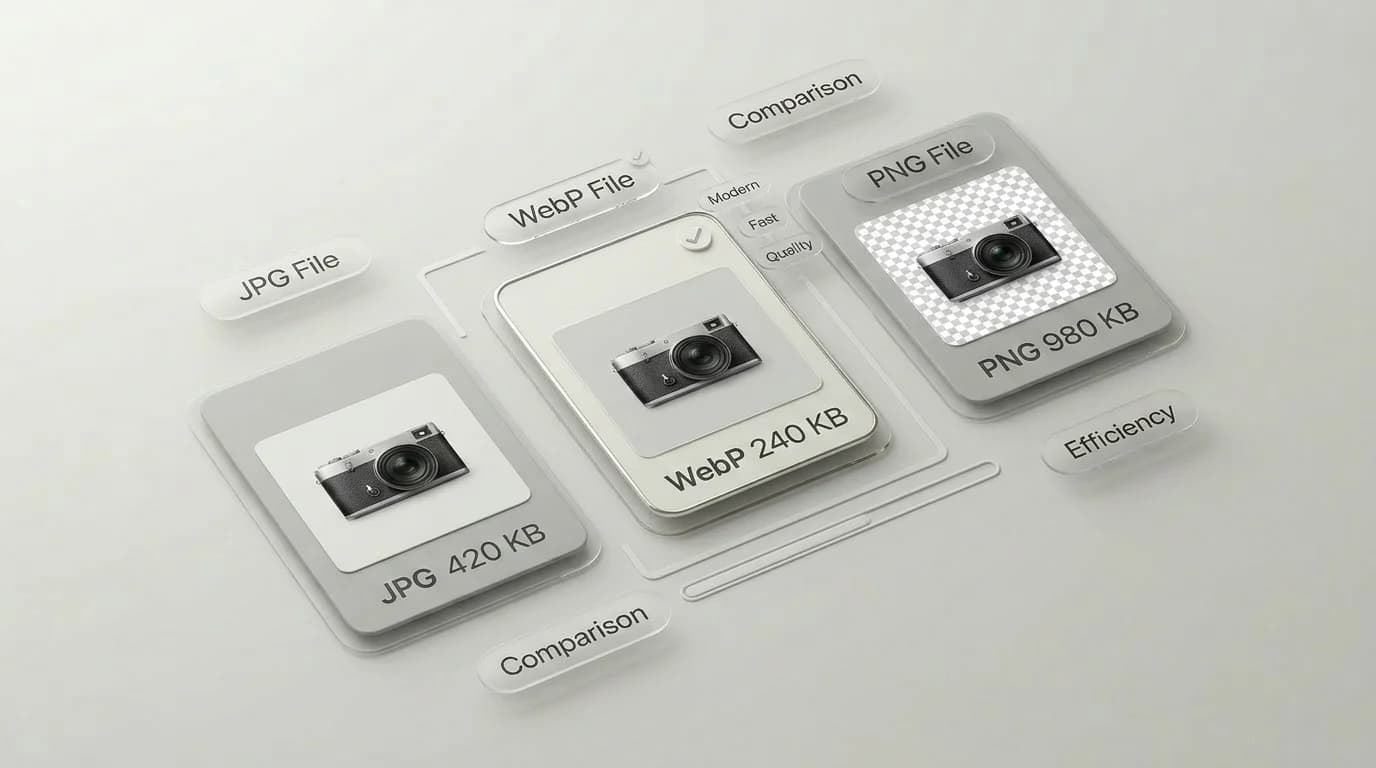
WebP strengths and weaknesses
| Feature | WebP support | What it means |
|---|---|---|
| Photos | Yes | Good replacement for many JPG web images |
| Transparency | Yes | Useful replacement for some PNG assets |
| Lossless compression | Yes | Can preserve exact detail when needed |
| Animation | Yes | Can replace some GIF use cases |
| Old software | Mixed | Some legacy apps still reject WebP |
| Print workflows | Not ideal | JPG, PNG, or PDF may be safer |
WebP vs JPG
For website photos, WebP often beats JPG on file size. A hero image, product photo, or blog thumbnail may look nearly identical after conversion while loading faster. JPG still wins when you need maximum compatibility outside the web: email, older desktop apps, printers, and upload forms that have not caught up.
WebP vs PNG
PNG is still excellent for screenshots, icons, and graphics where exact pixels matter. WebP can support transparency too, and it may make a transparent web graphic much smaller. But if you are handing off a logo to a designer, PNG or SVG is usually less surprising.
When you should use WebP
- Use WebP for website photos, thumbnails, and landing page graphics.
- Use WebP when PNG images are too large but you still need transparency.
- Use WebP for blog images where page speed matters.
- Use WebP as a published copy, while keeping JPG, PNG, or source files for editing.
When WebP is the wrong format
Do not use WebP when the receiving app does not accept it. That sounds obvious, but it is the main reason people convert WebP back to PNG or JPG. Some form uploads, older CMS plugins, desktop tools, and print workflows still expect older formats.
If a site or app rejects your WebP, convert it with WebP to PNG when transparency matters, or WebP to JPG when you only need a regular photo file.
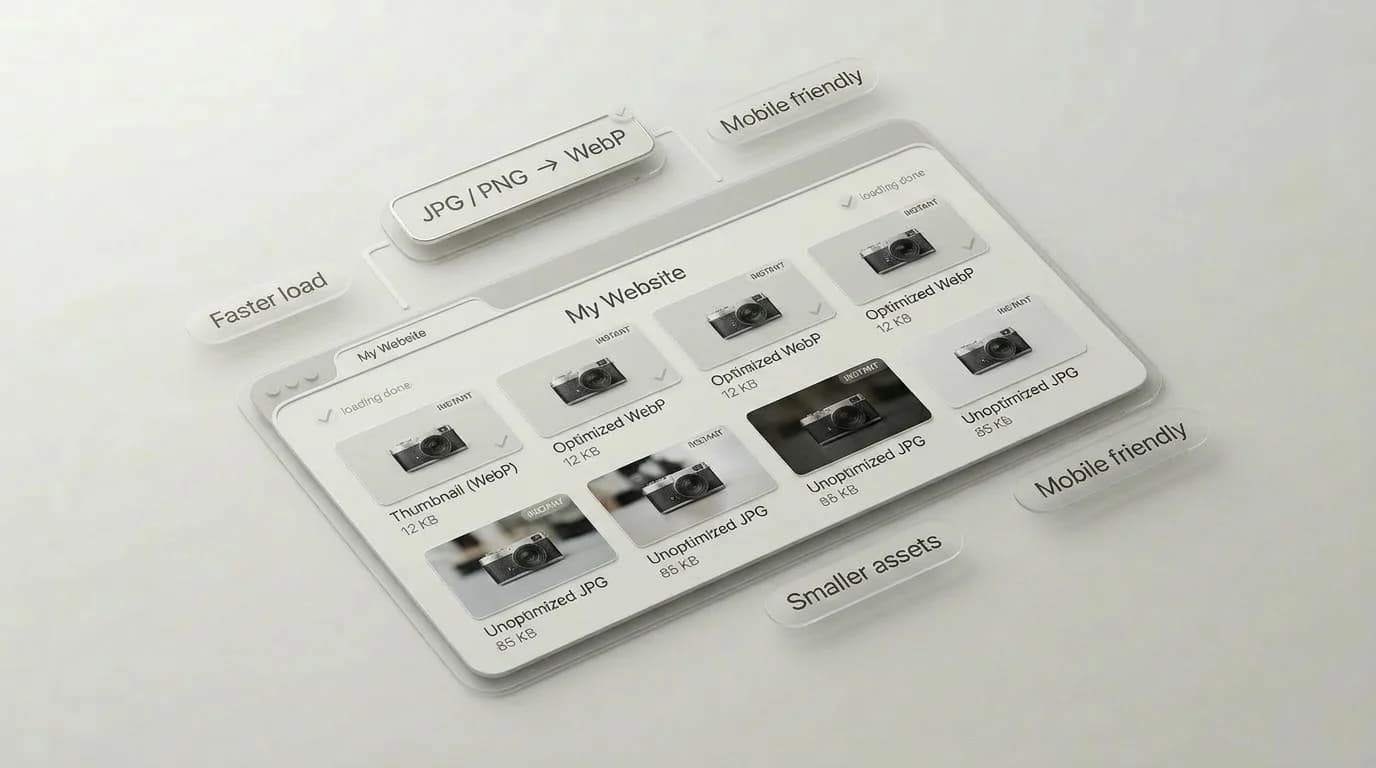
How to convert images to WebP
- Start with a high quality JPG or PNG source.
- Convert a copy to WebP.
- Compare the result at the size people will actually view it.
- Keep the original if you may need to edit the image later.
- Use JPG or PNG fallback files only where older tools require them.
SwiftSave includes quick browser tools for common WebP jobs. Try JPG to WebP for photos, PNG to WebP for transparent graphics, or WebP to PNG when another app refuses your WebP file.
WebP FAQ
Is WebP better than JPG?
For many website photos, yes. WebP can be smaller at similar quality. JPG is still safer for older workflows and general sharing.
Does WebP support transparency?
Yes. WebP supports transparency, which makes it useful for some graphics that would otherwise be PNG.
Should I delete my original images after converting to WebP?
No. Keep the original when you can. Use WebP as the web-ready copy, not necessarily as your only master file.