
How to Prepare Client Files Without Uploading (Batch Convert Phone Photos Privately)
A practical, privacy-first workflow for preparing client deliverables, batch converting phone photos, and choosing browser conversion over upload queues.

Patrick writes about PDFs, documents, and web publishing formats for SwiftSave. He focuses on the boring failure points: layout shifts, broken uploads, and files that work in one tool but not the next.
Images in this post are generated with AI.
You probably know this feeling: a client wants files in five different formats, the deadline is in three hours, and your phone gallery is full of IMG_9382 duplicates that all look the same until you zoom in. The worst part is not the conversion itself. The worst part is figuring out which files you can safely send through an online queue and which ones should never leave your device in the first place.
I deal with this weekly. Campaign decks, contract scans, annotated screenshots, product photos from someone else's iPhone, and a random request for "can you also send these as JPG and one PDF" five minutes before a call. A clean workflow removes most of the chaos. Private browser conversion takes care of the sensitive part.
The normal client-file mess (and why it keeps happening)
Most file problems are not technical failures. They are handoff failures. One person exports a transparent logo as JPG. Another person zips raw phone photos straight from iCloud. Someone else copies screenshots into a Word doc when the client asked for a single PDF. Nobody is trying to be difficult. Everyone is just moving fast.
Once you treat conversion as part of delivery, not a last-second emergency, everything gets calmer. You set target formats early, prepare copies instead of overwriting originals, and pick tools that match how sensitive the files are. If client files include contracts, invoices, IDs, design drafts, or private photos, privacy is part of the job.
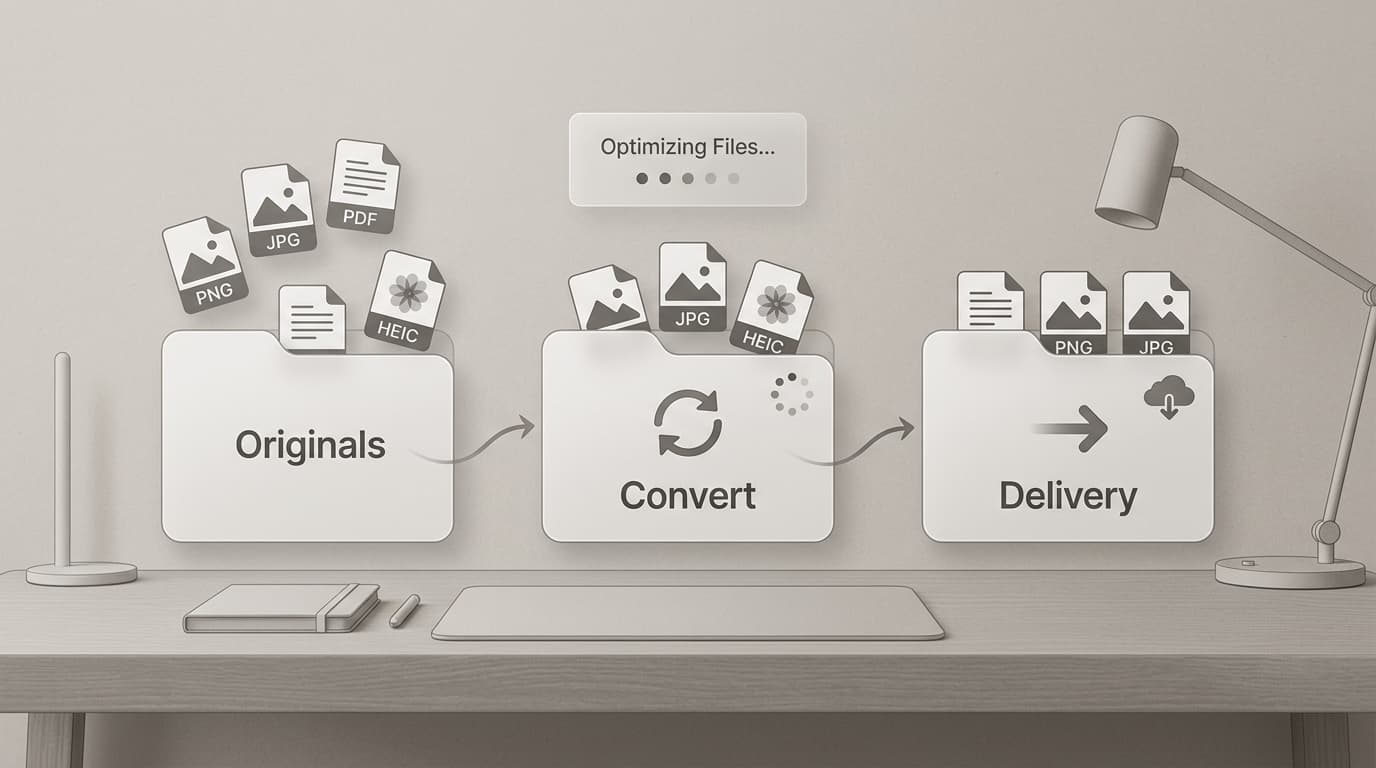
Workflow 1: prepare client files without uploading
This is the workflow I use when files are sensitive or a client asks for private handling. It works for agency deliverables, legal docs, internal product screenshots, and medical or finance-adjacent paperwork where you do not want files parked in unknown cloud queues.
Step 1: collect originals into one source folder
Put all originals in one folder and do not touch them again. Name it something obvious like 00-originals. If you need to prove where a file came from, this folder is your safety net. You can always reconstruct what happened later because your source assets stayed intact.
Step 2: duplicate only what needs conversion
Create a second folder, usually 10-convert. Copy files there, then convert those copies. This sounds basic, but it prevents the classic mistake where someone repeatedly re-saves a JPG and quietly degrades quality. Originals stay clean, and working copies absorb experiments.
Step 3: match each target to the actual use case
- Use PNG to JPG when the client needs lightweight photo-style files and transparency is not required.
- Use JPG to PNG if the asset needs cleaner editing handoff or transparent overlays later.
- Use Image to PDF when the client asks for one document instead of ten separate attachments.
- Use PDF to JPG to extract pages for slide decks, thumbnails, or social previews.
Notice what is missing: random conversion chains. If you bounce through PNG to JPG to PNG to WebP and back, you are just creating noise. Pick a clean source and convert once to the destination format that the client actually asked for.
Step 4: validate before delivery
Open a few converted files, zoom in, and check the details people care about. For screenshots, verify text edges. For photos, check skin tones and gradients. For PDFs, check page order and orientation. Five minutes here saves the painful "can you resend everything" email later.
Step 5: deliver with clear naming and a short README
I include three folders in delivery: originals (if agreed), converted files, and a final ready-to-use pack. Then I add a short README: what each folder contains, which formats are included, and where transparency was flattened on purpose. Clients appreciate this because they can forward the package internally without asking for another explanation.
Workflow 2: batch convert phone photos privately
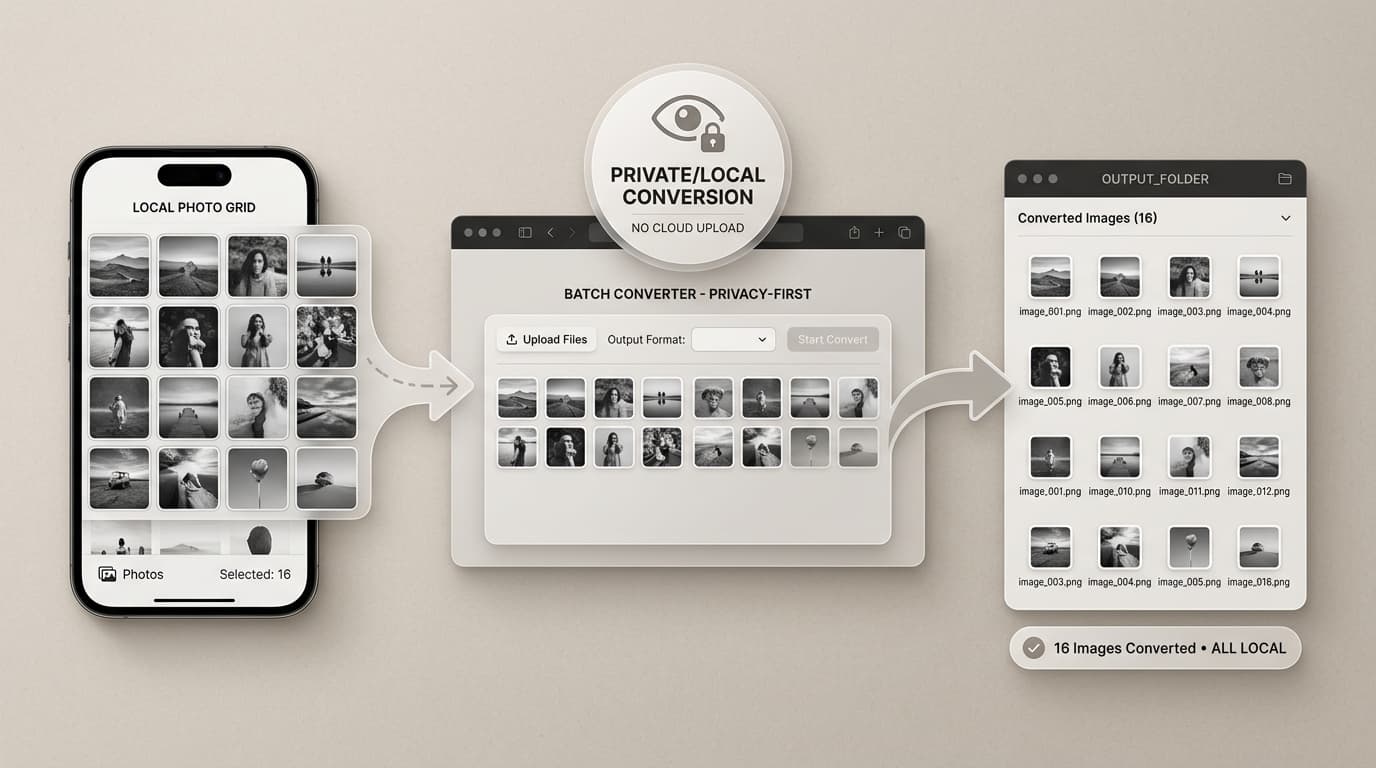
Phone photos are where workflows usually break first. You shoot in HEIC on iPhone, someone on Windows cannot open them, then someone screenshots the preview and quality falls off a cliff. Batch conversion fixes this if you do it in one pass and keep originals untouched.
- Export or copy the selected phone photos into one temporary folder.
- Decide the delivery target first: JPG for broad compatibility, PNG only when you truly need it.
- Run HEIC to JPG for iPhone compatibility handoff, or HEIC to PNG for editing workflows.
- Check one portrait photo, one landscape photo, and one low-light image before sending the full batch.
- Package all outputs into a dated folder and deliver once.
If the client wants a document instead of loose images, convert first and then bundle. A single PDF of twelve reviewed photos is cleaner than twelve separate uploads that can be reordered or dropped in email threads.
Why browser converters beat upload-heavy online tools for private work
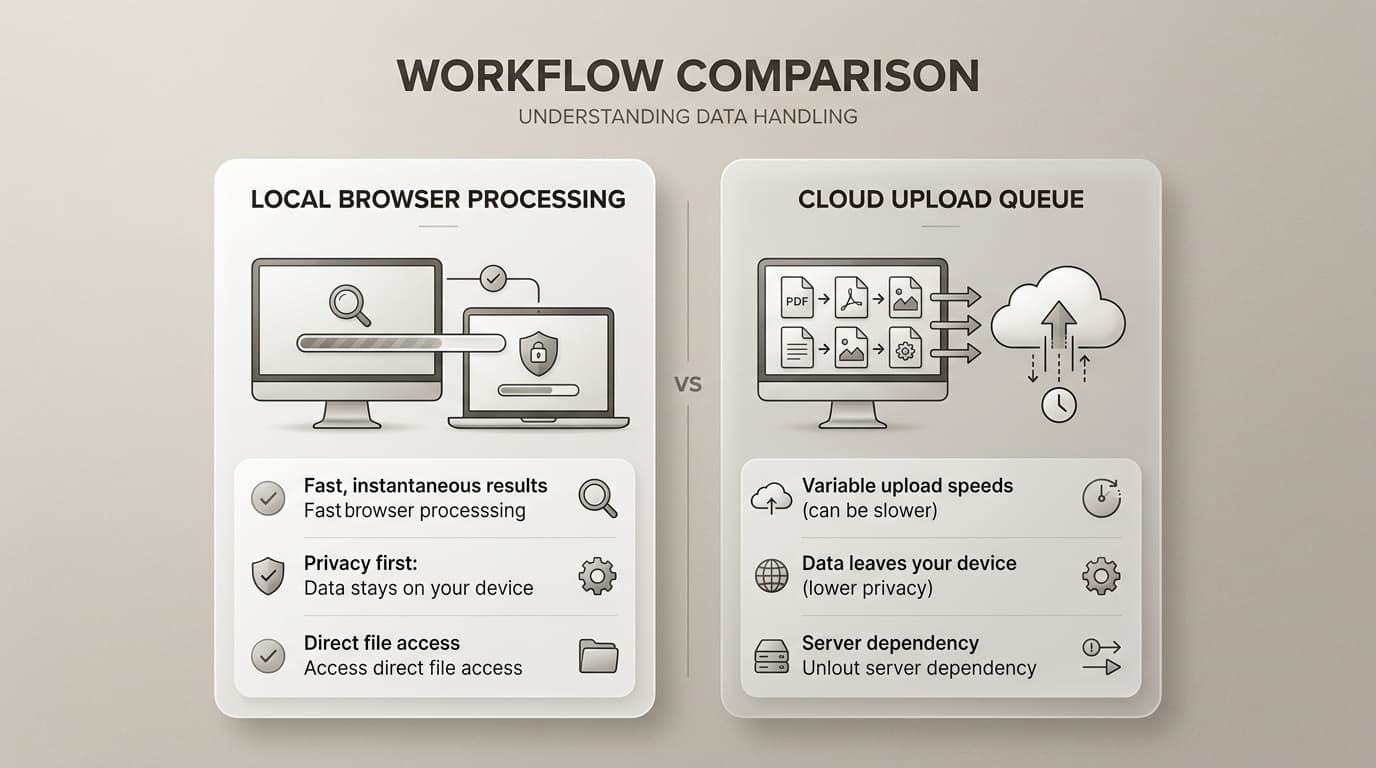
A lot of online converters are useful. Some are excellent. But when files are sensitive, architecture matters more than marketing. Browser-side conversion means processing happens on your device for supported formats. Upload-first tools move files to someone else's infrastructure before conversion even starts. That difference matters when files contain personal or client-confidential data.
| Question | Browser-side conversion | Upload-first conversion |
|---|---|---|
| Where does processing happen? | On your device for supported workflows | On remote servers after upload |
| Do you need an account first? | Usually no | Often yes for larger files or batch jobs |
| What if files are confidential? | Risk surface is lower | Depends on vendor retention and policy clarity |
| How predictable is speed? | Mostly local CPU and browser performance | Network plus queue time plus server load |
| What can go wrong socially? | Mostly local format mistakes | Unexpected limits, expired download links, account gates |
Metadata and accidental oversharing are real risks
I have seen people upload entire photo sets when they only needed three images. That upload can include timestamps, location hints, and unused private shots. Even when a service is trustworthy, minimizing exposure is still a good habit. Local conversion helps you share only what you actually need.
Account walls kill momentum
The fastest workflow is often the one with zero onboarding friction. No sign-up. No inbox verification. No "upgrade to continue" prompt after you already dropped files. If you are under deadline pressure, every extra step increases the chance of a rushed mistake.
Network dependency is often the hidden bottleneck
Upload-heavy tools can be fine on great internet. They become painful on hotel Wi-Fi, mobile tethering, or crowded coworking networks. Browser-side conversion keeps work moving when connectivity is unstable, because the conversion itself is not waiting on round-trip uploads.
Why we built SwiftSave this way
SwiftSave exists because many converters force a tradeoff you should not have to make: speed versus privacy, convenience versus control, free access versus account lock-in. The goal here is simple: convert common file types quickly in the browser, keep the workflow clear, and avoid turning a two-minute task into a registration funnel.
- Fast conversion paths for images, documents, audio, and video workflows people actually use.
- No registration required for basic jobs, so teams can move when deadlines are tight.
- Clear converter routes so you can jump straight to the task instead of hunting menus.
- Practical handoff support: JPG, PNG, WebP, PDF, DOCX-related paths, and mobile format bridges.
If your daily work includes mixed file requests, bookmark the core routes once and stop thinking about them: all converters, PNG to JPG, JPG to WebP, Image to PDF, and PDF to JPG. That covers most client handoffs I see.
A complete example: from messy phone dump to client-ready package
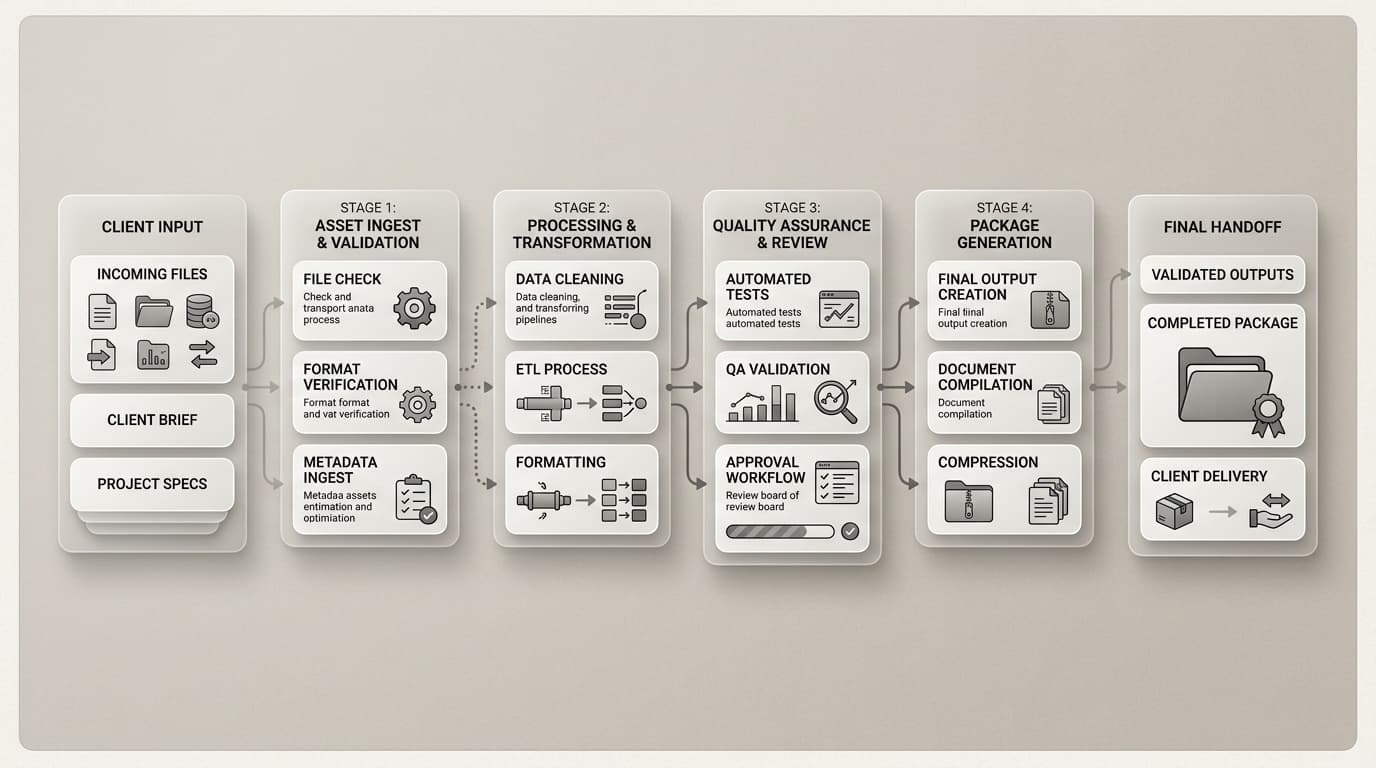
Here is a real-world pattern. A client sends 48 iPhone photos and asks for compressed JPG copies for the website, one PDF with the best 12 images for internal review, and untouched originals archived for legal traceability. This used to take me way too long. Now it is a repeatable checklist.
- Create folders: 00-originals, 10-jpg-web, 20-pdf-review, 99-delivery.
- Copy all incoming files into 00-originals.
- Convert selected HEIC files using HEIC to JPG into 10-jpg-web.
- Spot-check ten files at random for quality and orientation.
- Combine the review set into one document using Image to PDF and save it in 20-pdf-review.
- Write a short README with what was converted and why.
- Move final outputs to 99-delivery and send once.
This workflow is not glamorous, but it is reliable. Clients care more about reliable than fancy. They want files that open, load quickly, and look right without another round of clarification messages.
Troubleshooting common conversion failures
| Issue | What usually caused it | Fix |
|---|---|---|
| Converted logo has a white box | Transparent PNG was flattened to JPG | Keep PNG/WebP or re-export with intentional background |
| Client says photos look soft | Repeated lossy saves or aggressive compression | Start from original and convert once at a higher quality |
| PDF pages are in wrong order | Images were merged in file-system sort order | Rename pages or reorder explicitly before export |
| Batch includes rotated images | Mixed orientation metadata from phone capture | Review portrait and landscape outputs before full delivery |
| Upload form rejects modern format | Platform only accepts JPG/PNG/PDF | Convert to required legacy format for handoff |
FAQ
Can browser conversion handle large client batches?
For most day-to-day jobs, yes. Performance depends on your device and browser, but handling normal image and document batches locally is often faster than waiting in an upload queue.
Should I always avoid cloud converters?
Not always. If files are public marketing assets and you need a specialized server-side workflow, cloud tools can be fine. For sensitive client material, local browser conversion is usually the safer default.
What is the safest way to keep quality high?
Keep originals untouched, convert copies once, and avoid unnecessary round trips between lossy formats. Validate the outputs before sending.
Which converter routes should I bookmark first?
Start with All converters, then add PNG to JPG, HEIC to JPG, Image to PDF, and PDF to JPG. That set covers the most common client handoff requests.