
PDF vs DOCX: When to Use Which Format
Editing versus handoff, layout risk, scans, forms, and the conversions that help when someone sends the wrong container.

Patrick writes about PDFs, documents, and web publishing formats for SwiftSave. He focuses on the boring failure points: layout shifts, broken uploads, and files that work in one tool but not the next.
Images in this post are generated with AI.
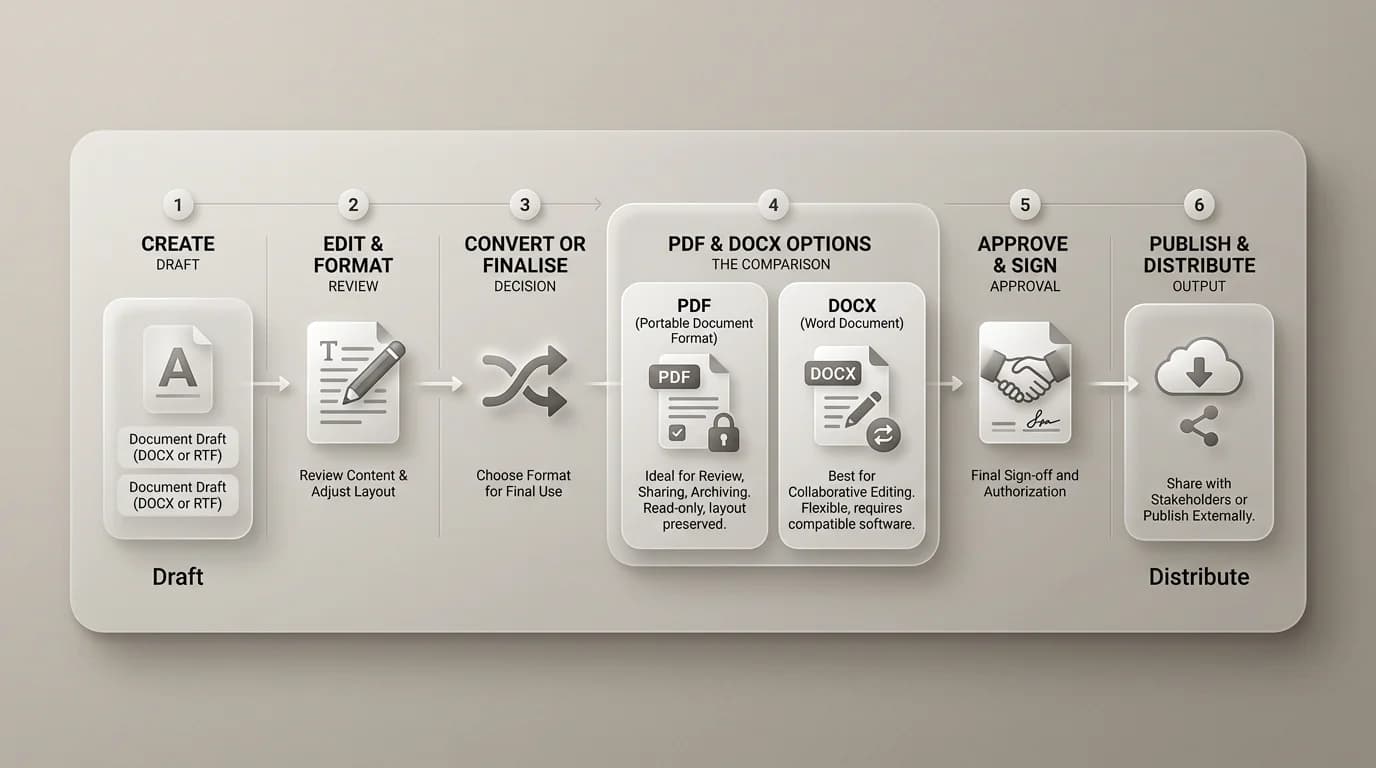
DOCX is where documents still move. PDF is where documents stop moving. That is the simplest way I explain it to someone who is angry about both formats for opposite reasons. Word files are great when you need track changes, comments, and flexible layout while you are thinking. PDFs are great when you need the page to look the same on your screen, your boss screen, and a print shop screen.
The confusion starts when people use the wrong one for the job. They send a PDF and ask for heavy edits. They send a DOCX and expect pixel-perfect brochure behavior. They ship a resume as DOCX and wonder why fonts reflow on another machine. Picking the right container saves everyone time, including future you.
DOCX: the living draft
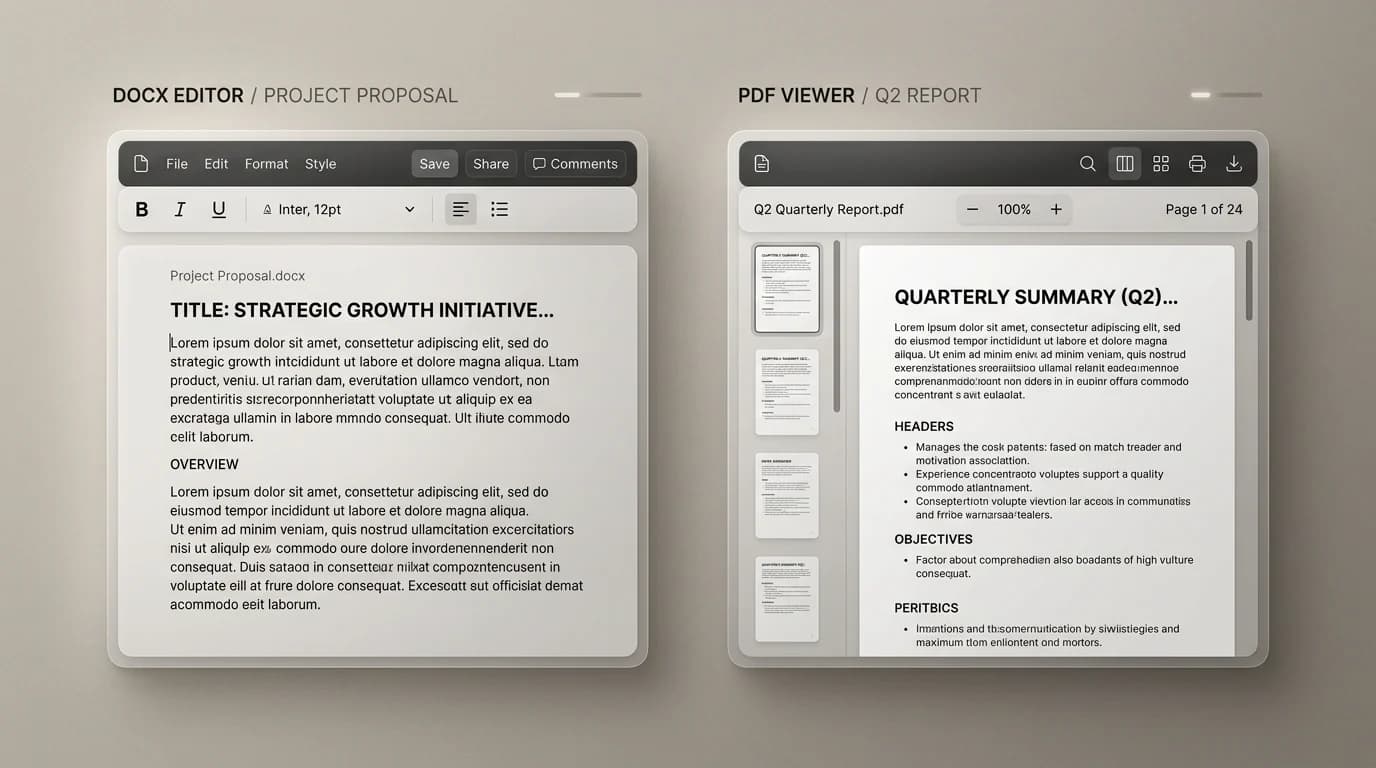
DOCX is the native-ish format of Microsoft Word and a lot of compatible editors. It is built for editing: paragraphs reflow, styles update, tables adjust. That flexibility is exactly what makes it risky as a final handoff when layout precision matters.
PDF: the frozen handoff
PDF packages fonts, layout, vectors, and images into a file that is meant to render consistently. That is why contracts, tickets, invoices, and resumes often travel as PDF. It is also why PDF can feel stubborn when you suddenly need to rewrite a paragraph like a word processor.
Decision table I keep in my head
| Goal | DOCX | |
|---|---|---|
| Collaborative writing | Yes | Painful |
| Client-ready brochure handoff | Risky | Strong |
| Legal-style final copy | Depends | Often yes |
| Copy text out easily | Usually easy | Depends on how it was made |
| Combine scans into one file | Unusual | Common |
When conversion enters the story
Sometimes you need images from a PDF for a slide deck. Sometimes you need a PDF assembled from phone photos. SwiftSave supports PDF to JPG, PDF to PNG, and Image to PDF in the browser for supported files. For text-heavy Word exports into publishing pipelines, we also support DOCX to HTML and DOCX to Markdown when you want cleaner text for the web.
Common mistakes that waste an afternoon
- Treating a scanned PDF like it is editable text without OCR.
- Emailing a huge DOCX when the receiver only needs to read, not edit.
- Expecting perfect layout round-tripping between PDF and DOCX without a human sanity check.
When OCR changes the answer
Scanned PDFs are a separate species. If the file came from a camera or scanner, text selection may not work until OCR has run. That is the point where people get frustrated and blame PDF itself, when the real issue is that the file is a picture of paper, not editable text. If you need to search, copy, or quote the document, OCR matters more than the file extension.
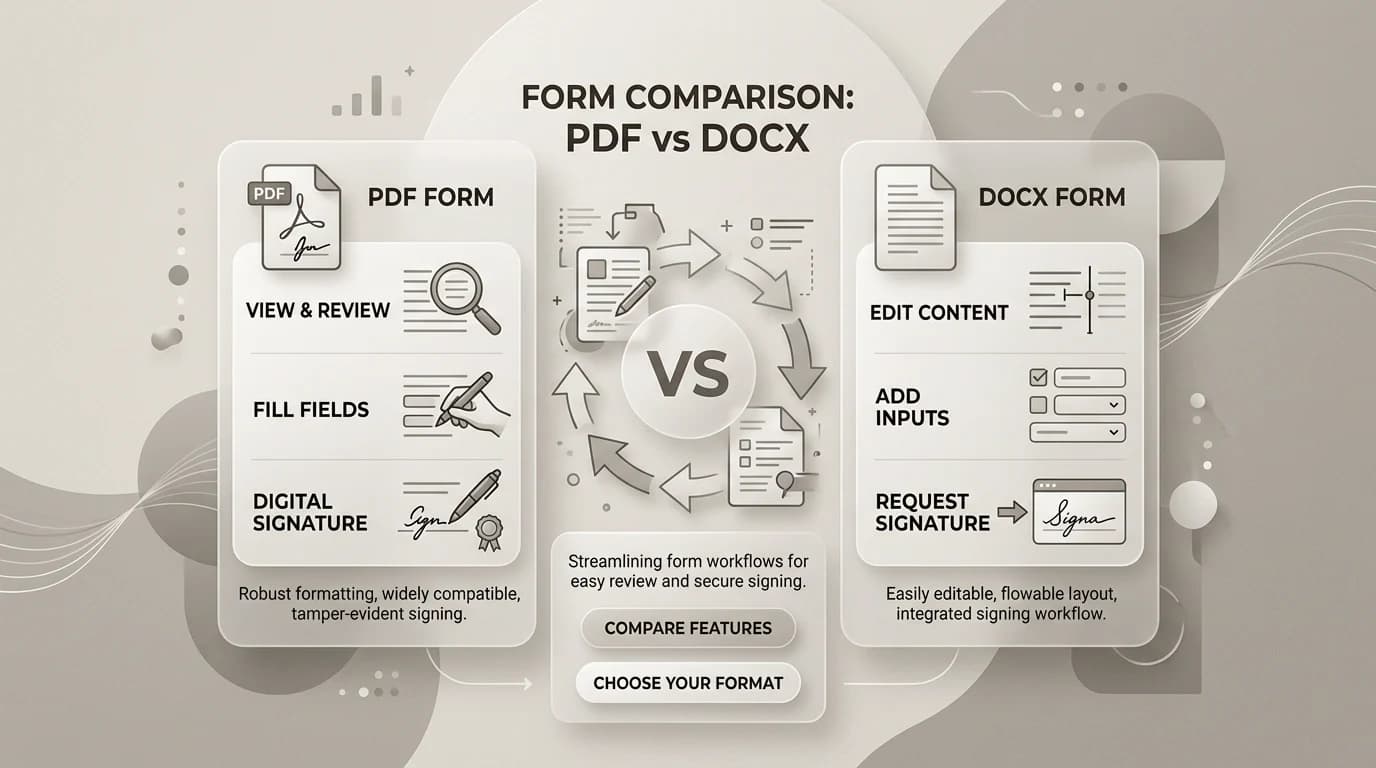
I tell people to ask one question before they convert anything: do you need to edit the words, or only read and distribute them? If the answer is edit, DOCX or an OCR-enabled workflow is the better next step. If the answer is read, sign, archive, or send, PDF usually wins.
How to keep exports from turning weird
- Use the same page size throughout if the document will end up as PDF.
- Avoid copying PDF text into DOCX unless you are ready to clean formatting by hand.
- When you export from Word, check fonts, line breaks, and page numbers in the PDF preview.
- If a client needs comments, keep a DOCX draft around even after the PDF goes out.
PDF vs DOCX: one quick FAQ
Can I convert PDF back to DOCX reliably?
Conversion from PDF to DOCX is possible but not perfect. Simple text-only PDFs convert reasonably well. Multi-column layouts, embedded tables, and mixed fonts often scramble on the way back. If the document was originally a Word file, the best path is finding the DOCX source. If the only copy is a PDF, expect a conversion plus a manual cleanup session.
Why do fonts look different in the PDF?
If the font is not embedded in the PDF, the viewer substitutes something close. This is why a document that looks perfect in Word can look subtly wrong in a PDF viewer on a different machine. Embedding fonts at export time is the standard fix. Most "Export to PDF" workflows do this by default; if yours does not, check the export options.