
JPG vs WebP: Why Switch for Web Images in 2026?
Merlin breaks down when WebP beats JPG for websites, when JPG is still the safe handoff, and how to convert without uploading to a random queue.

Merlin writes SwiftSave's image format guides and has spent 8+ years working with web image workflows. He tests conversion flows with screenshots, logos, and phone photos, then documents practical tradeoffs: what stays sharp, what gets smaller, and what breaks in real app handoffs. Contact: [email protected].
Images in this post are generated with AI.
JPG has been the default web photo format for so long that it feels like gravity. WebP is not trying to be weird for fun. It is trying to make the same visual decision with fewer bytes, which matters when your page has twelve hero-sized images and a visitor is on a train.
You do not have to pick one format for your entire life. You pick a format for the step you are in: editing, archiving, publishing, or emailing to someone who still uses older software. I still use JPG constantly. I also use WebP constantly. What matters is what that URL needs to accomplish.
What WebP usually changes for web photos
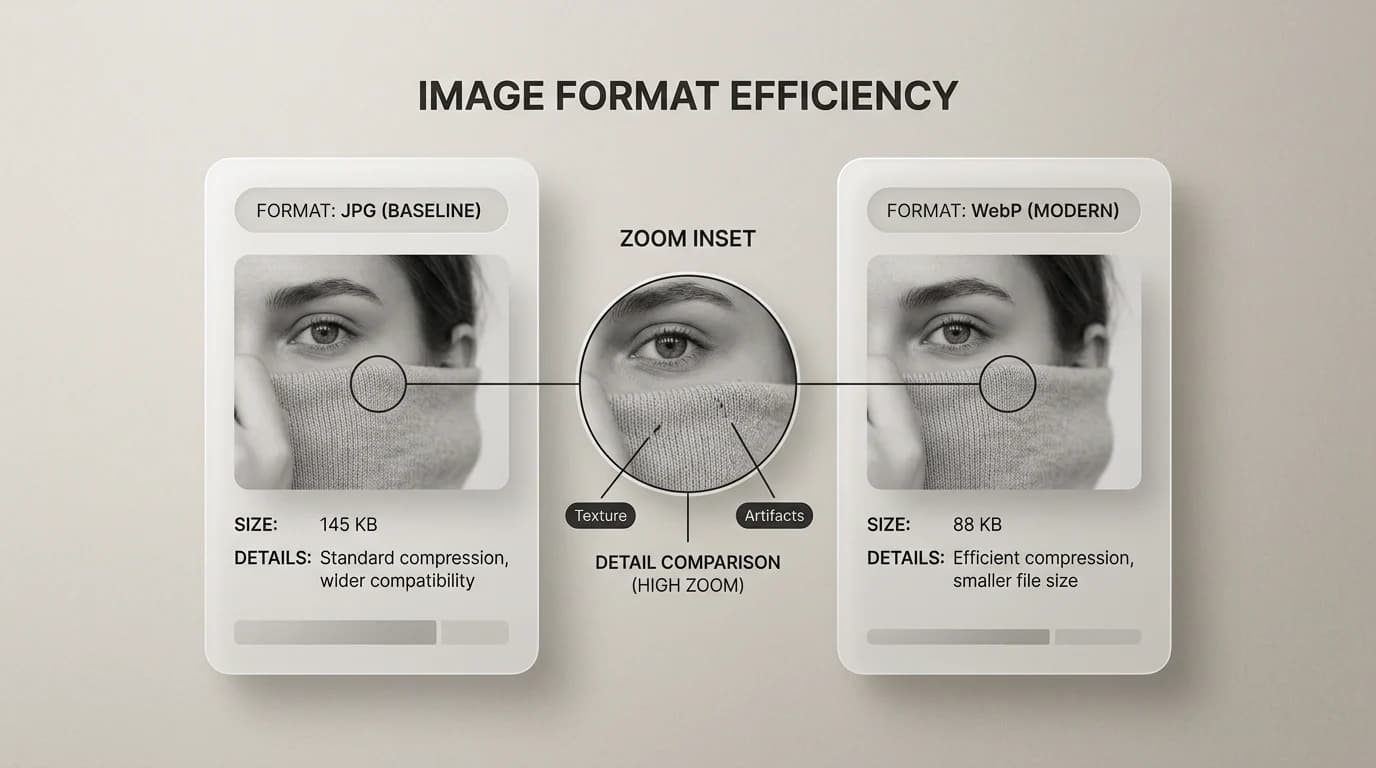
For many photographs, WebP can match a JPG at a similar visual quality with a smaller file. Smaller files mean faster loads, less bandwidth, and fewer people bouncing while images dribble in. The exact win depends on the image, the encoder settings, and how picky you are about fine texture.
What JPG still wins at
- Maximum compatibility when you do not control the receiver.
- Places where WebP is technically supported but socially suspicious (some print shops, some forms).
- Workflows where your tools already default to JPG and you do not want surprises.
Side-by-side checklist
| Question | Lean JPG | Lean WebP |
|---|---|---|
| Does the upload form reject WebP? | Yes | No |
| Is this a published web image where speed matters? | Maybe | Often yes |
| Do you need the smallest email attachment? | Often yes | Sometimes yes |
| Are you handing off to a mixed-age Windows environment? | Often safer | Check first |
How I mix JPG and WebP without drama
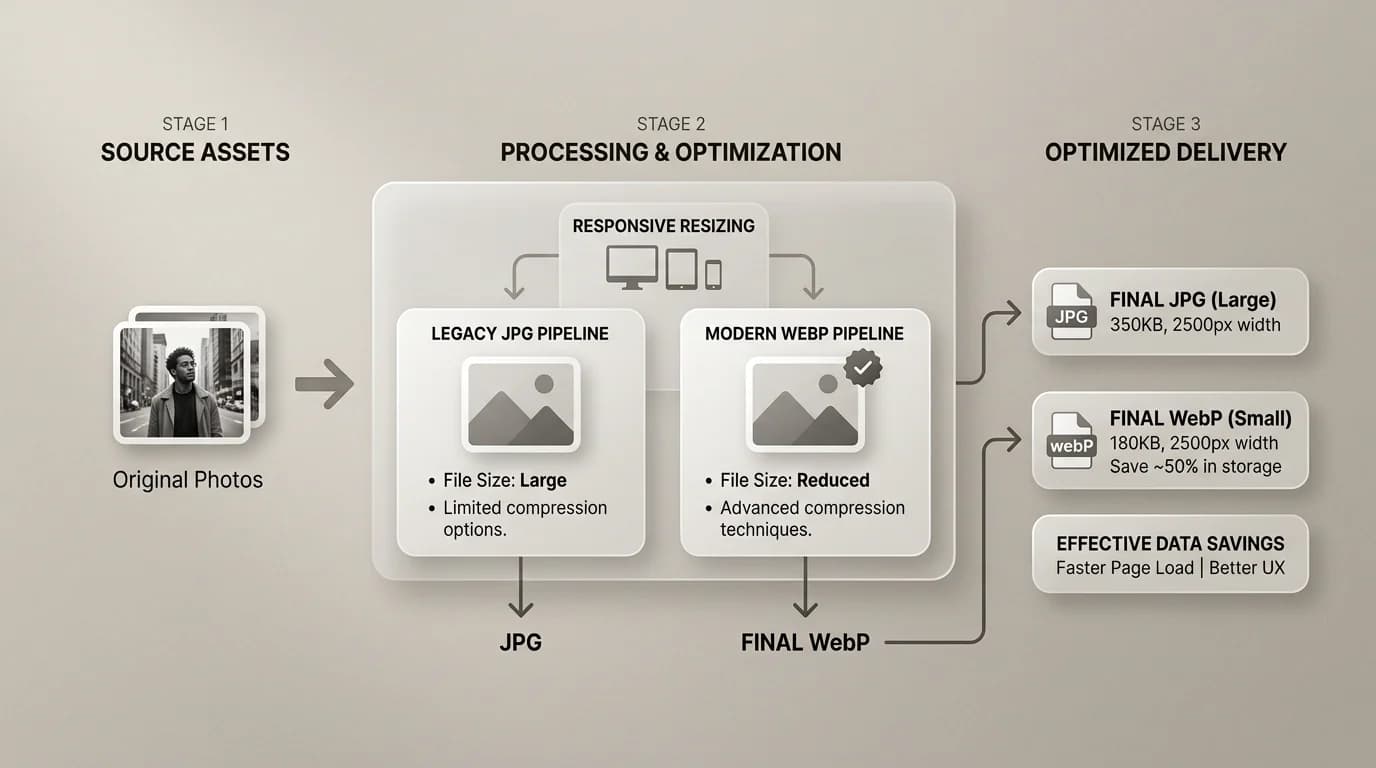
- Keep a high quality JPG or original camera file as the master when that is what you have.
- Generate WebP copies for the website build when the stack supports it.
- Keep JPG alongside WebP when you need a boring fallback.
- Re-test after compression. Textures in hair, fabric, and grass show problems first.
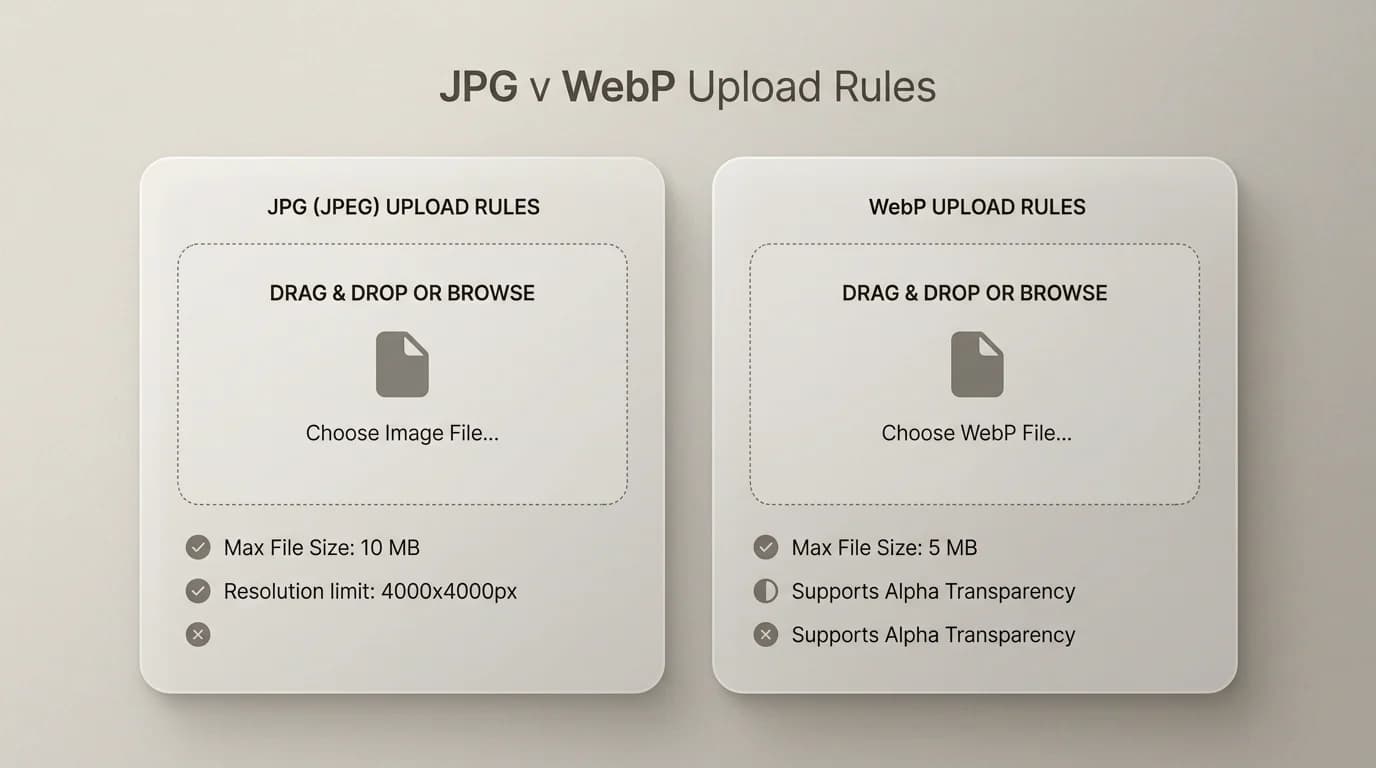
SwiftSave makes the boring swaps easy: JPG to WebP for publishing copies, and WebP to JPG when a tool complains. If you are also juggling PNG assets, PNG to WebP is the parallel move for transparent graphics on the web.",
WebP and the tools that still argue about it
Not every toolchain is ready for WebP. Some WordPress installs still need a plugin to serve it reliably. Some legacy DAMs ignore it. macOS preview handles it, but older Quick Look versions have shown inconsistency. If a tool seems to ignore your WebP, verify the file opens in a modern browser first, then decide if that step of the workflow needs to stay in JPG.
When JPG is still the safer publish file
WebP is great when you control the site, the CMS, and the preview environment. JPG is safer when you do not. If the image has to move through a client portal, a legacy DAM, or an email thread that will be opened by three different people on different systems, JPG is usually the less fragile choice. I use WebP for the page I own and JPG for the handoff I do not.
A quick check after conversion
- Open the file at the size it will actually appear on the page.
- Check the parts that usually fail first: hair, grass, shadows, and small text.
- Compare file size against the original. If WebP is not meaningfully smaller, JPG may be good enough.
- Keep the source JPG if you might need to re-export later.
The conversion is not the end of the job. A quick visual check is. Automated pipelines that compress to WebP without a review step occasionally produce files that look fine in the builder preview but show subtle artifacts in the live browser. Thirty seconds of spot-checking saves a support ticket later.