How to Convert PNG to JPG Without Losing Quality (2026)
Step-by-step: transparency decisions, resizing, quality, single-pass conversion, and browser-based tools that skip signup.

Merlin writes SwiftSave's image format guides and has spent 8+ years working with web image workflows. He tests conversion flows with screenshots, logos, and phone photos, then documents practical tradeoffs: what stays sharp, what gets smaller, and what breaks in real app handoffs. Contact: [email protected].
Images in this post are generated with AI.
You cannot magically convert PNG to JPG without giving something up, because JPG does not even speak transparency. What you can do is avoid dumb losses: pick a background on purpose, resize before you compress, and stop re-saving the same JPG ten times. Quality loss is often a workflow problem more than a single conversion problem.
I will walk you through the way I do it when I need a smaller attachment, a marketplace upload, or a client who lives in JPG world. This is not theorycraft. It is the boring version that keeps text readable and halos off your logos.
Step 1: Decide if JPG is allowed for the job
If you need transparency, stop. JPG will flatten it. If you need perfect pixel stability for a screenshot archive, think twice. If you just need a smaller photo-like graphic and you can accept a flat background, continue.
Step 2: Fix transparency before export
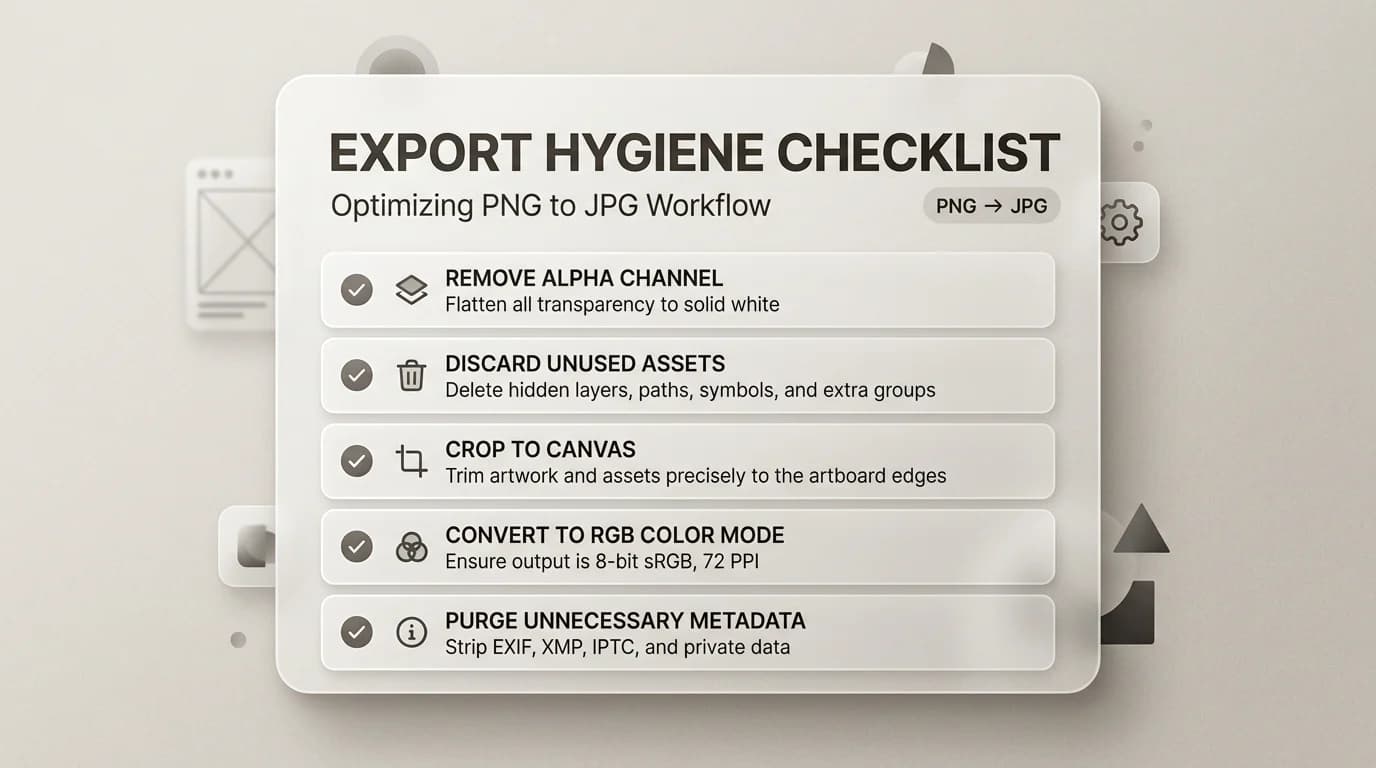
If your PNG has alpha, choose the matte color that will survive the flatten. White is not universal. If you skip this step, you will get a surprise sticker edge on dark websites. Many design tools let you flatten to a chosen background before you export.
Step 3: Resize to the display size first
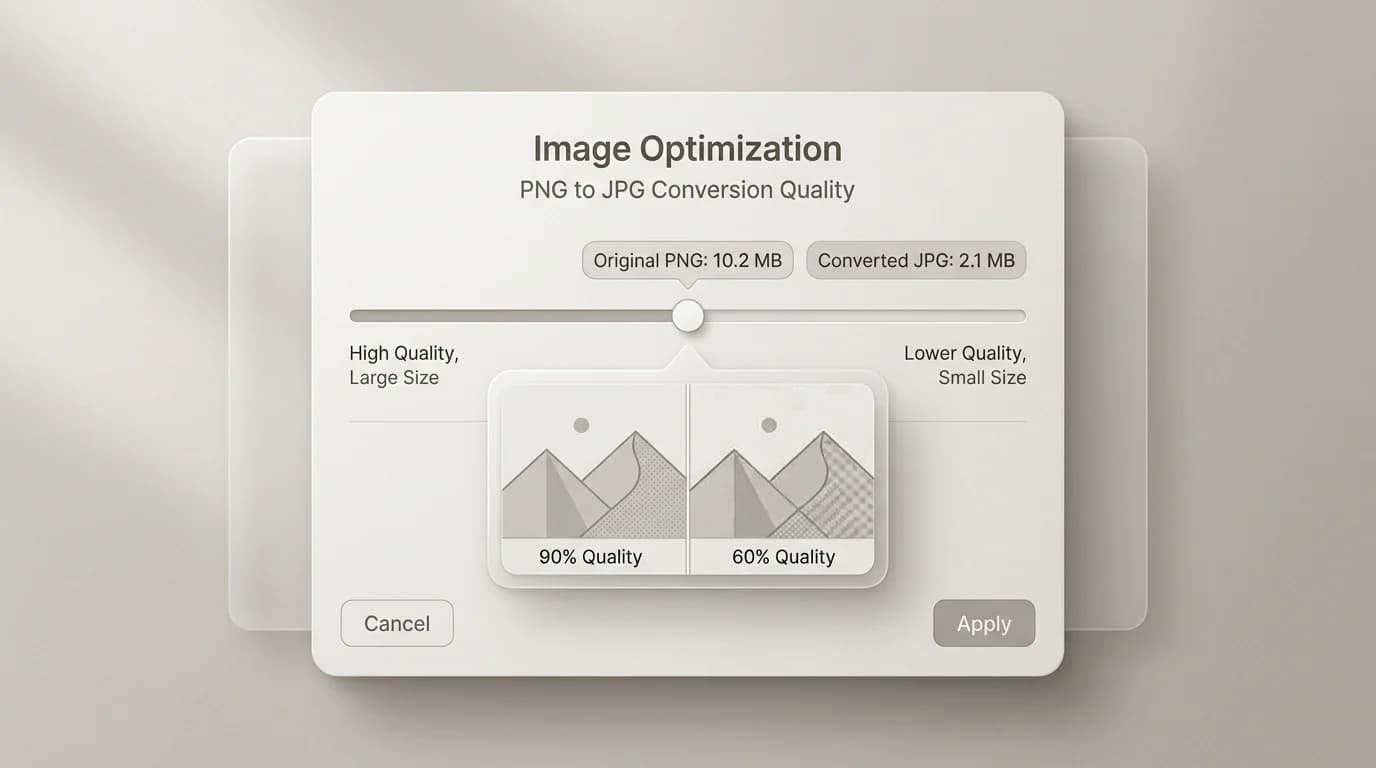
If the image will only ever show at 900 pixels wide, there is little point feeding a 6000 pixel wide monster into a JPG encoder. Downsizing first often saves more bytes than cranking quality sliders while keeping detail sharper.
Step 4: Convert once from a clean master
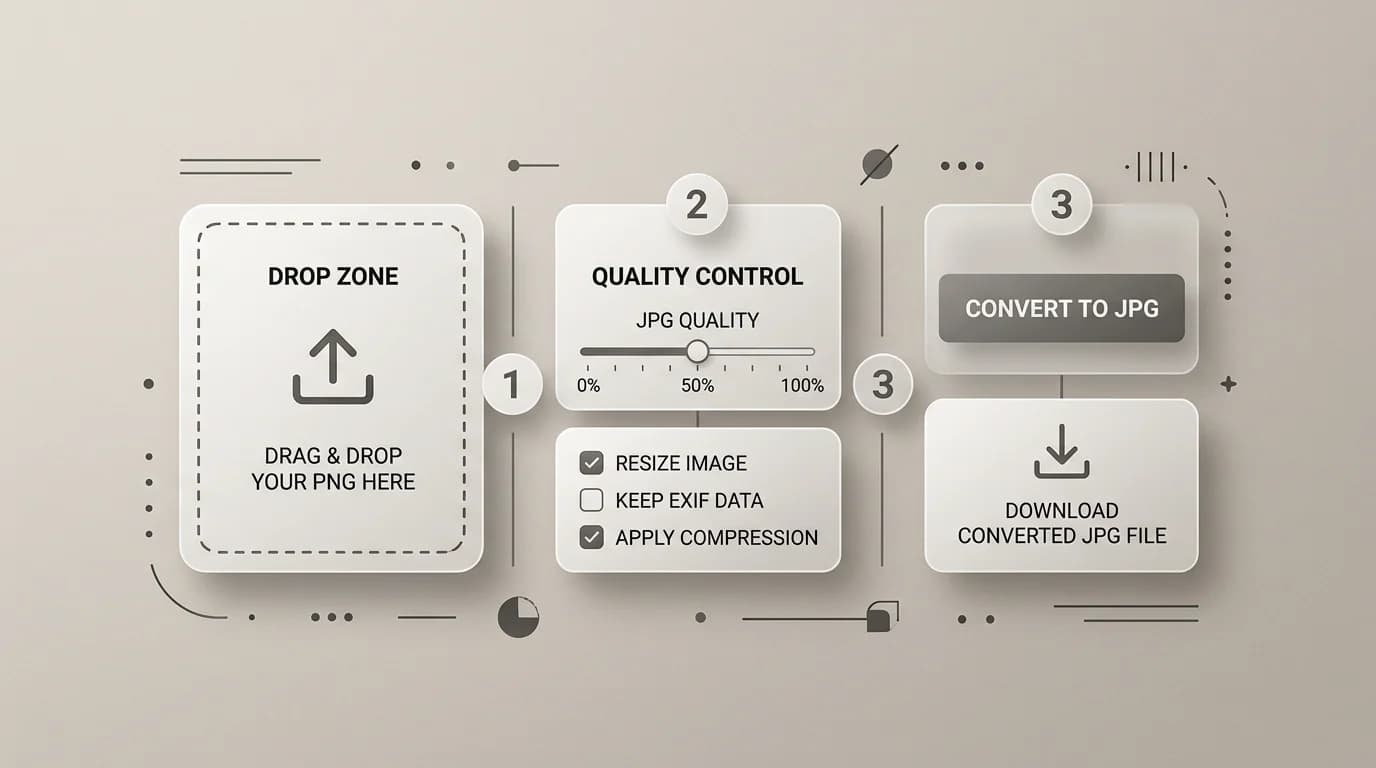
Open PNG to JPG, drop your prepared PNG, download the JPG, and keep the PNG if it is still your master. If you later need a lossless editing copy again, JPG to PNG can help, but it will not resurrect true transparency that you destroyed earlier. Prevention beats repair.",
The re-save trap most people fall into
Someone has a JPG, opens it in a photo editor, tweaks the brightness, saves as JPG again, sends to someone, who opens it in a different tool and saves a copy. By the time that image has been through four JPG saves, the artifacts in gradients and edges are visible at normal viewing size. This is not a software bug. It is how lossy encoding works.
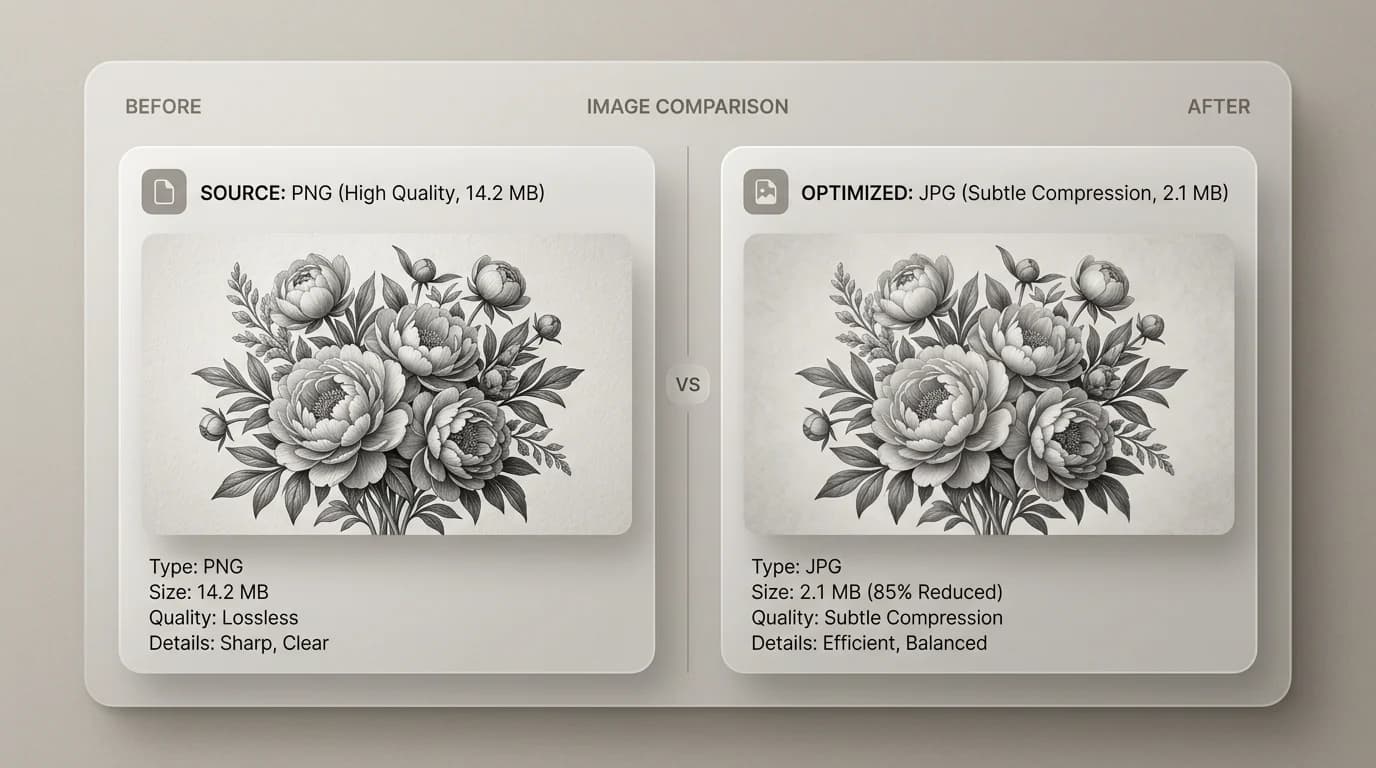
If you are converting PNG to JPG, the conversion itself is one round of loss. That is usually fine. The problem is treating the resulting JPG as a master you will save again and again. Keep the PNG if you think you will need to go back. The JPG is for the handoff, not the archive.
FAQ
What quality setting should I use?
For most social, email, and web use, somewhere between 75 and 85 percent covers the majority of cases. At that range, typical photos and graphics look fine at normal viewing distances and the file size drops meaningfully from a hundred percent. If you are exporting a product photo for a marketplace that recompresses uploads anyway, do not agonize over the exact number.
Will SwiftSave re-save the JPG multiple times?
SwiftSave converts your PNG once. It does not re-open and re-save the output. One conversion, one round of encoding. Keep the PNG if you want a stable master to come back to.
| Problem | What to do |
|---|---|
| Blurry small text | Raise quality, reduce dimensions less aggressively, or keep PNG |
| Huge file after conversion | Resize first, lower quality gradually, consider WebP for web |
| Weird color shift | Check embedded color profiles and preview in the target app |
| Halo around logo | Pick a better matte color or keep PNG / WebP |