
How to Convert PDF to JPG: Step-by-Step Tutorial
Pick a target size, export pages as JPG, sanity-check sharpness, and use PDF to JPG conversion locally in your browser.

Patrick writes about PDFs, documents, and web publishing formats for SwiftSave. He focuses on the boring failure points: layout shifts, broken uploads, and files that work in one tool but not the next.
Images in this post are generated with AI.
PDF to JPG sounds like a niche technical task until you need a thumbnail for a blog post, a slide background from a locked poster, or a single page from a scan you cannot crop cleanly any other way. The goal is simple: turn each page into a bitmap image your next tool understands.
This tutorial is written for normal humans, not print engineers. You will decide what resolution you actually need, export, then check the result before you send it onward. That last step matters more than any setting with a fancy name.
Step 1: Know what you need the JPG for
If the JPG is only for a small preview on a website, you do not need print resolution. If the JPG is for a slide deck shown on a projector, you still might not need insane pixel counts. Oversized exports are how people accidentally email 80 megabytes of "just a few pages."
Step 2: Open PDF to JPG and load the file
Go to PDF to JPG in SwiftSave, drop your PDF, and let the page read it. If your PDF is a scan, expect photos of paper. If your PDF is vector text exported cleanly, expect sharper edges at the same resolution.
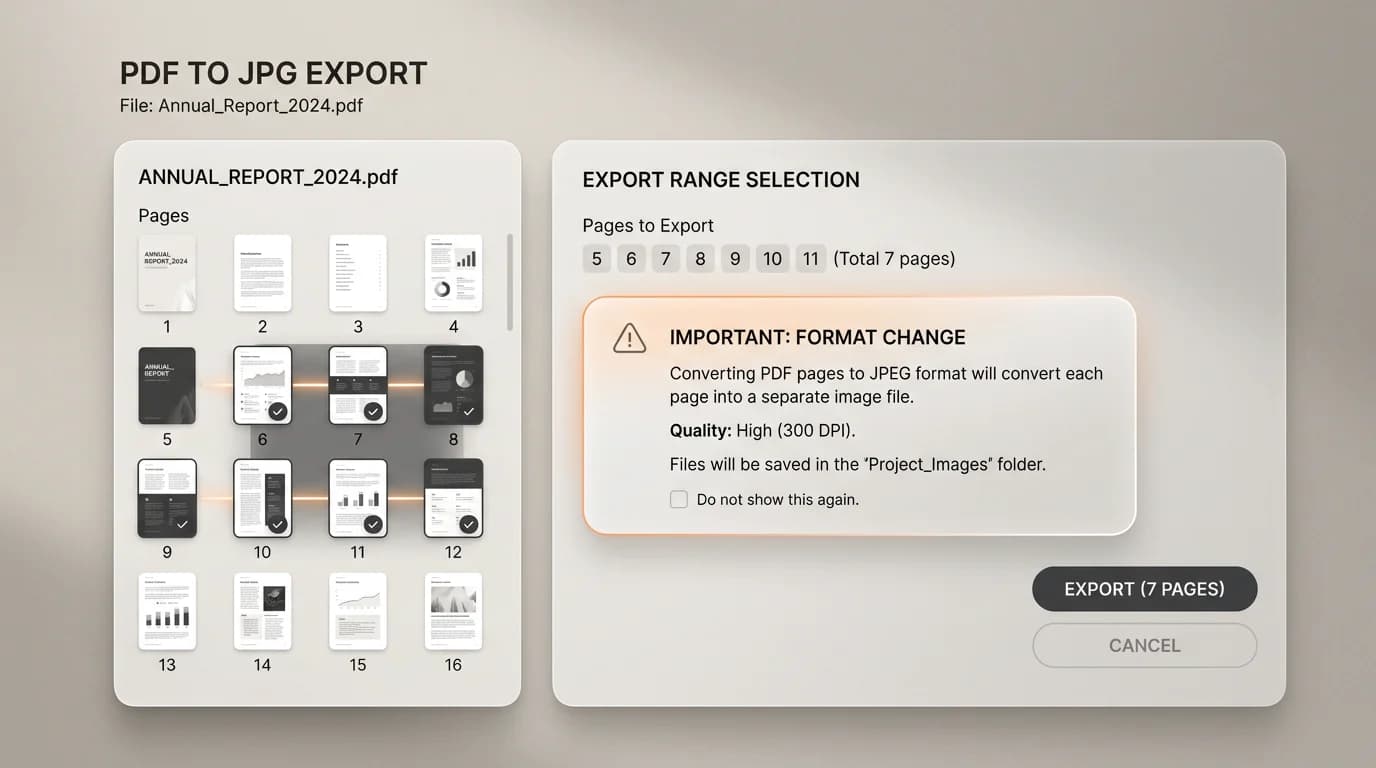
Step 3: Pick resolution with one practical rule
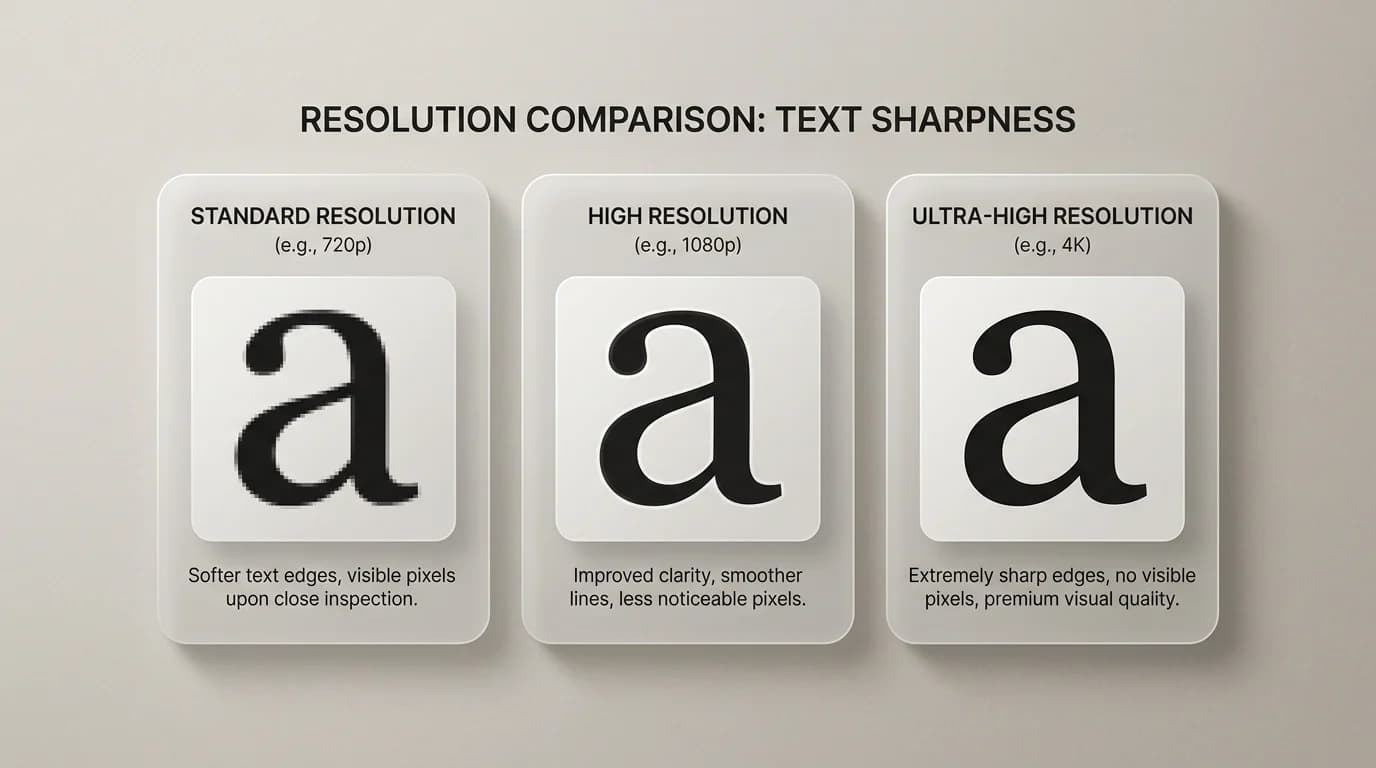
Match resolution to the display width you care about, then add a little margin for zooming. If you export at 4000 pixels wide for a 800 pixel wide blog slot, you are mostly wasting bytes unless you want zoom headroom.
Step 4: Export and inspect text edges
- Download the output.
- Open the first page and zoom to 100 percent of how it will be viewed.
- If text looks crunchy, raise resolution or export PNG for sharp graphics.
- If file size explodes, lower resolution until the text is still acceptable.
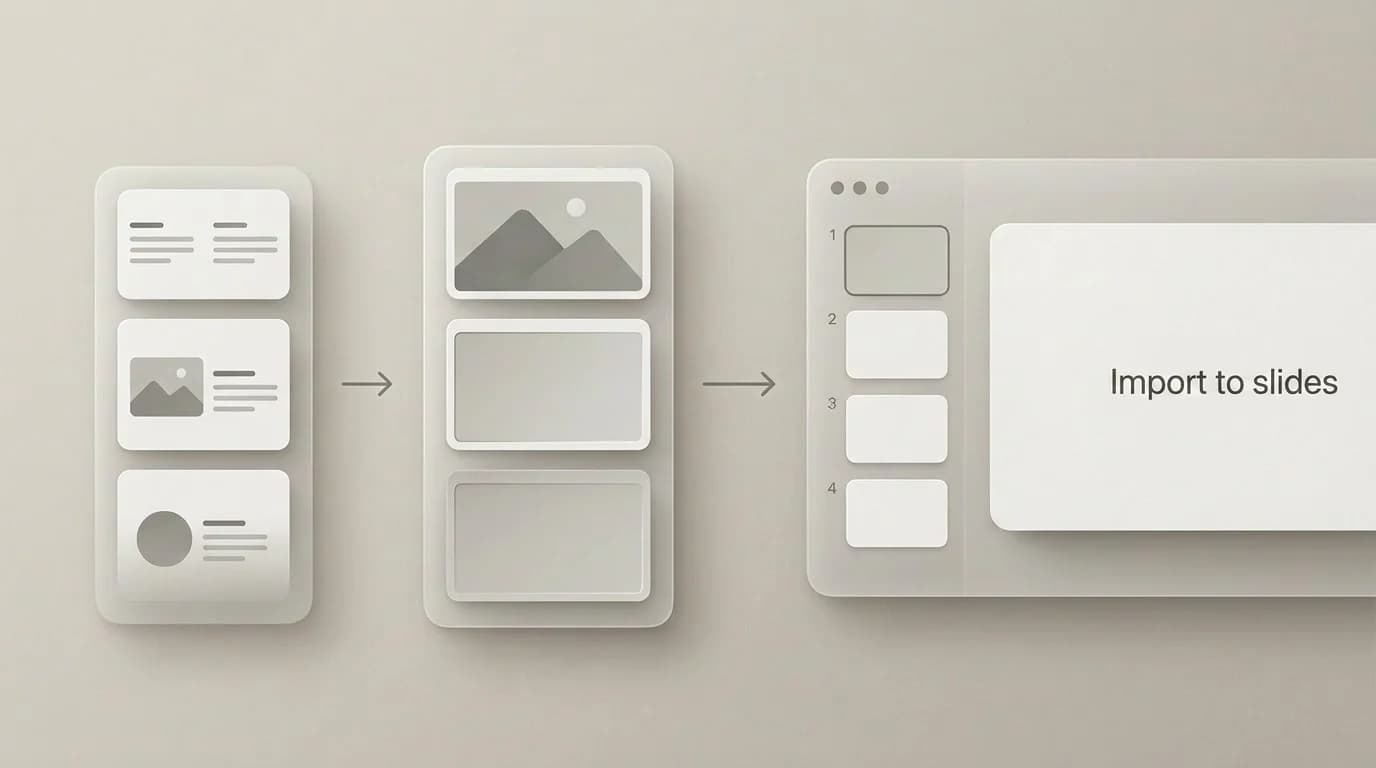
Step 5: Rename files before you drop them anywhere
Multi-page PDFs exported to JPG produce numbered files. Most tools name them something like page_001.jpg through page_012.jpg. That works fine right now. It is less useful when you import them into a slide deck two months later and cannot remember which was the cover and which was the appendix. Rename before you use them.
When PNG beats JPG for the same PDF page
JPG adds compression artifacts around hard edges and text. That matters more when the page is a legal document, a form with fine print, or a UI design export. If you are exporting a text-heavy page that people will read at full zoom, PDF to PNG gives you cleaner edges at the same resolution. Use JPG when the page is primarily a photo or illustration and the goal is a smaller attachment.
Common mistakes that slow the job down
- Exporting all forty pages when you only needed page four. Set the range.
- Using the default resolution without checking if it matches the display size the images will actually appear at.
- Ignoring the output file size until after upload. A batch of high-res pages is not a quick email attachment.
- Re-exporting from a JPG you already saved instead of from the original PDF. Each pass from a lossy file stacks damage.
If JPG is the wrong tool because you need transparency or sharper UI captures, switch to PDF to PNG. If you need the opposite direction, Image to PDF still exists for packaging scans.
One practical habit
Right after export, open the first and last page in a viewer at the size you actually care about. Most export problems show up in the first ten seconds of looking. If both pages look right at that size, the batch is probably fine. If one page is blurry and the rest are fine, re-export that page with a higher resolution instead of re-exporting everything.