How to Convert Images to PDF: Best Methods and Tools
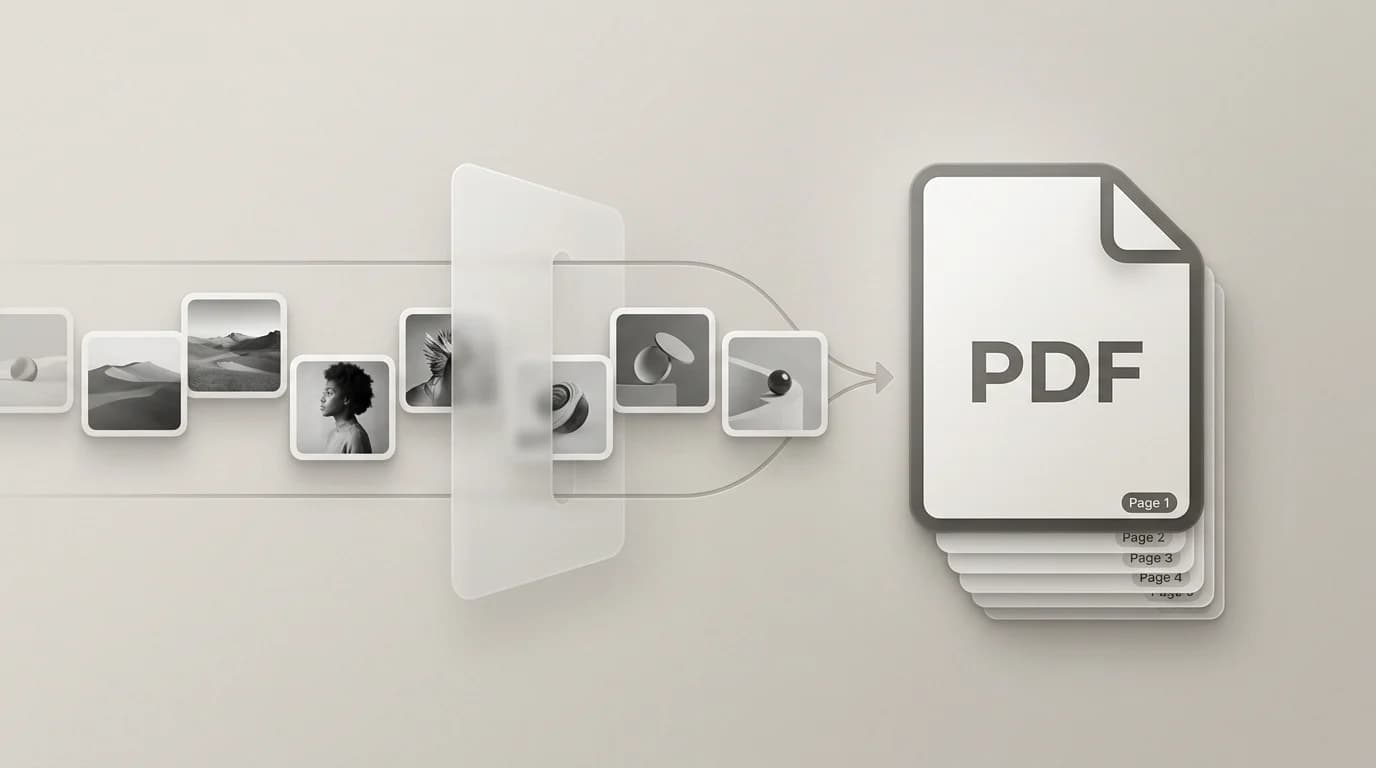
Order pages, avoid huge attachments, combine JPG and PNG scans, and export a single PDF locally in your browser.

Patrick writes about PDFs, documents, and web publishing formats for SwiftSave. He focuses on the boring failure points: layout shifts, broken uploads, and files that work in one tool but not the next.
Images in this post are generated with AI.
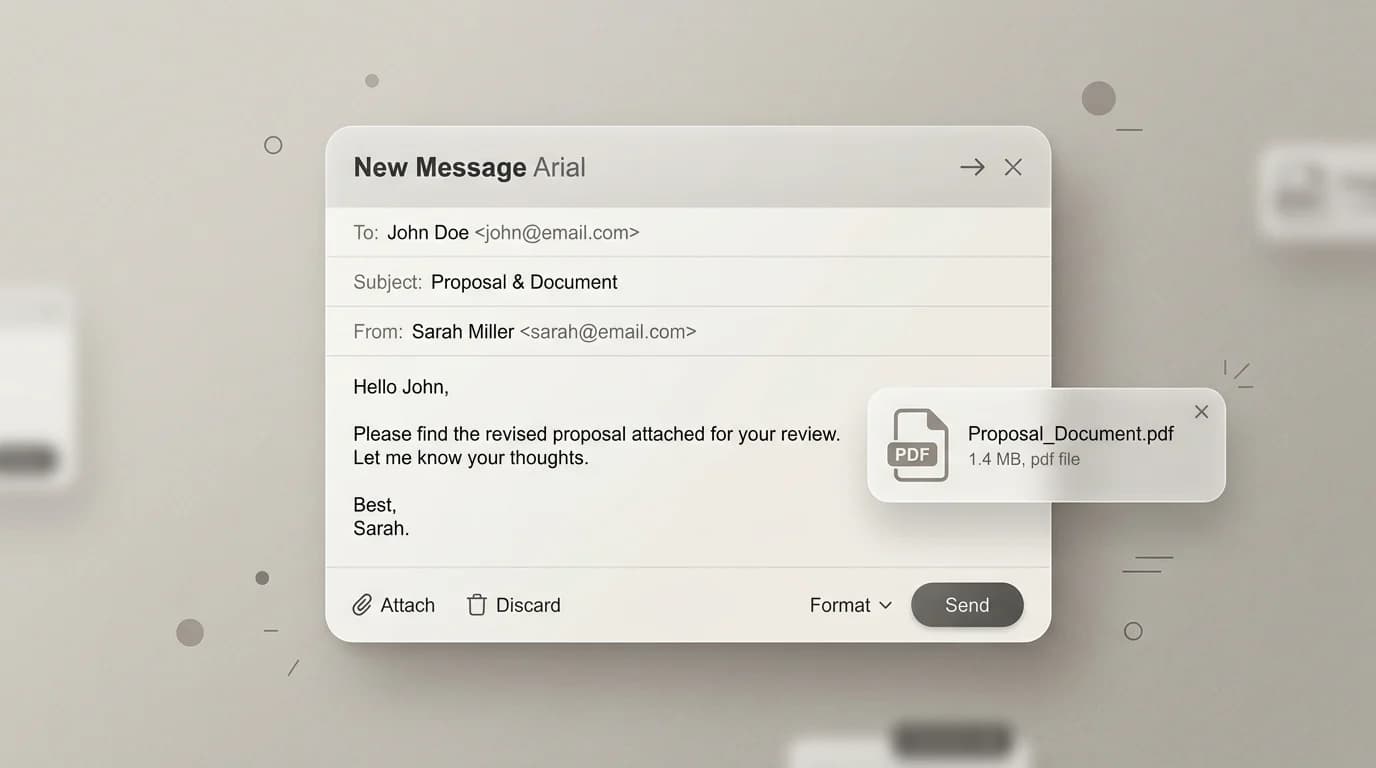
People ask for "one PDF" more often than you would think. A landlord wants every document in a single thread. A teacher wants homework photos bundled. A client wants screenshots packaged without you narrating which image comes first. Converting images to PDF is less about magic and more about order, margins, and not sending a dozen attachments named IMG_4821.
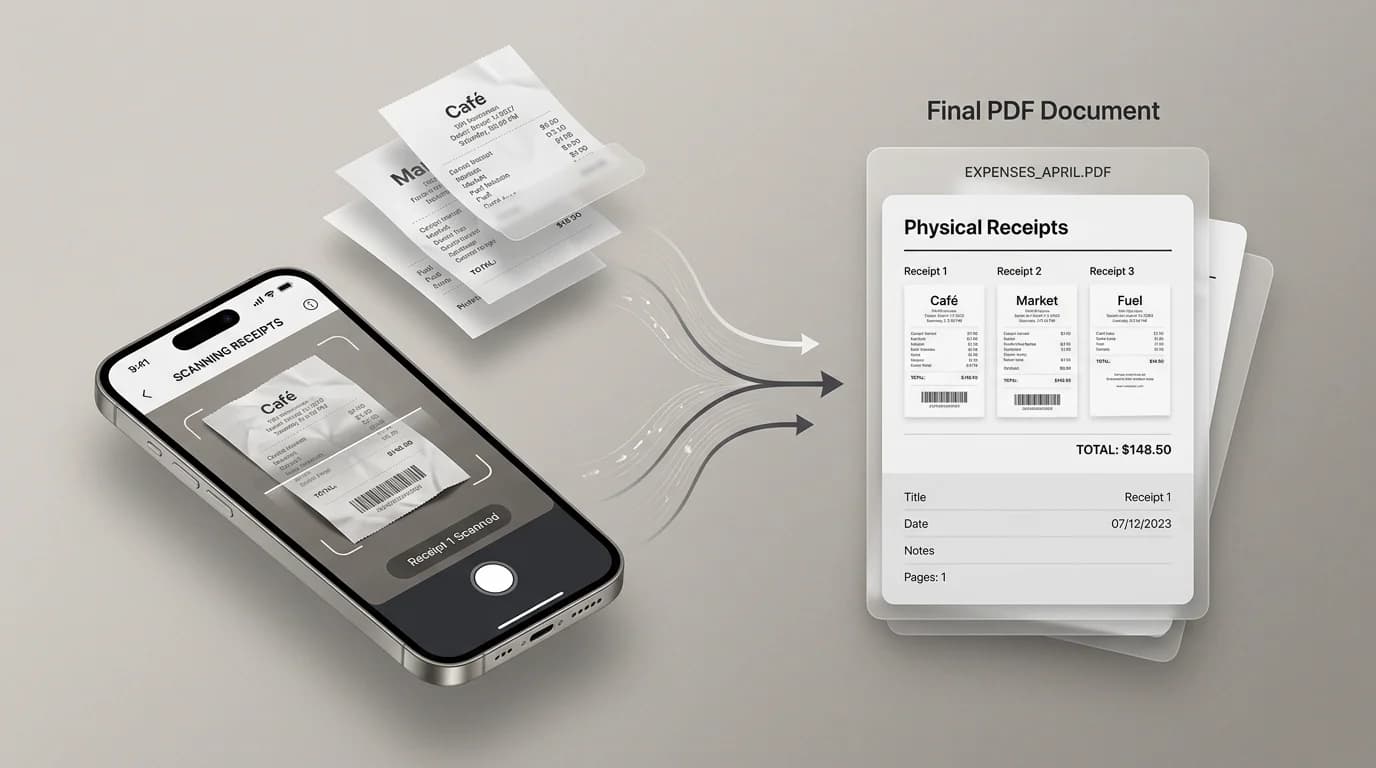
Same workflow every time: receipts, phone photos, scans, exports from design tools. For supported files I use SwiftSave in the browser when I do not want random uploads sitting on someone else's disk.
Method A: merge many images into one PDF
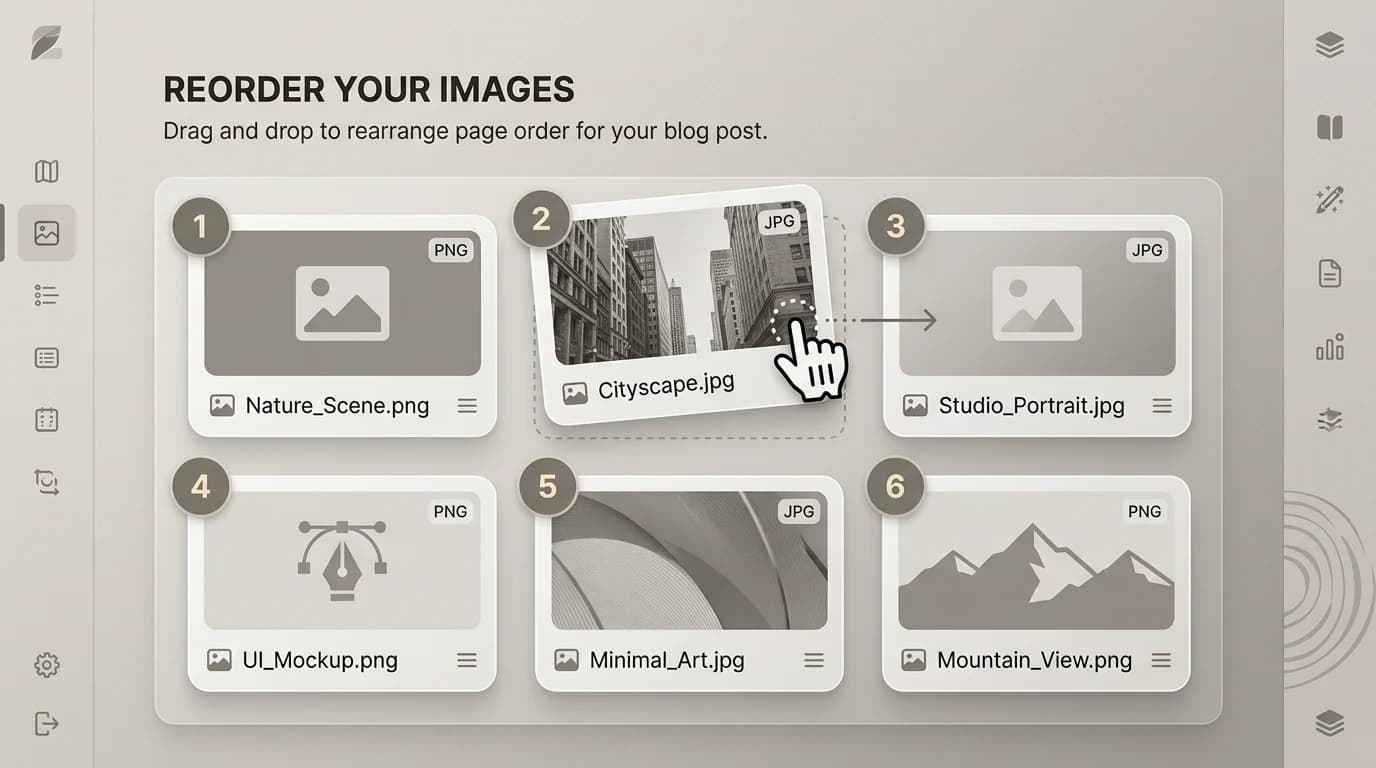
- Rename files in the order you want pages, if your tool does not let you reorder visually.
- Open SwiftSave Image to PDF and add images in that order.
- Preview mentally: cover page first, evidence next, signature last.
- Export, then open the PDF once to confirm nothing rotated wrong.
Method B: treat PDF as the portable "folder"
Some people use PDF like a zip file for images. That is fine when the receiver only needs to view and print. It is less fine when they need to edit pixels. Match the container to what the receiver will do next.
Getting page orientation right before you merge
Portrait photos and landscape screenshots do not naturally share a PDF page without someone deciding how to handle the mismatch. Some converters rotate automatically; others preserve the file orientation as-is. Before you combine a mix, open each image and confirm it is pointing the right direction. A portrait scan landing sideways on a landscape page is the first thing recipients notice.
The fix is usually quick: rotate before you add the file to the merge tool, or use the built-in rotation if the tool has one. Fixing it in the PDF after the fact is possible but slower than spending thirty seconds beforehand.
Common pitfalls
- Mixing portrait and landscape photos without checking how they land on the page.
- Embedding giant camera originals when a downscaled copy would read the same on a screen.
- Forgetting that some forms want JPG, not PDF, and vice versa.
What to check before you send
- Open the PDF and scroll every page, not just the first one.
- Check total file size. A bundle of uncompressed phone photos can easily hit 40 MB.
- Confirm the page count matches what you intended. Adding a file twice is an easy mistake.
- Open the PDF on a second device or app to catch any rendering quirk you would not see in your own viewer.
When the PDF comes out too large to email
If the recipient has a mailbox that bounces at 10 MB, a 40 MB bundle of originals is going to fail silently or with a confusing error. Options: downscale the images before combining, run a compression step after export, split into multiple smaller PDFs, or switch to a file sharing link. The format is not the culprit. The source image sizes are.
Quick reference: which image formats work cleanly
- JPG and PNG: straightforward. These combine into PDF without surprises in most tools.
- HEIC from an iPhone: convert to JPG first if the tool does not handle HEIC directly.
- WebP: supported in modern tools but worth a test before committing a whole batch.
- Screenshots at full phone resolution: beautiful but potentially bloated. Downscale if you do not need every pixel.
If you are combining a mix of formats and one of them refuses to behave, convert the problem file to JPG first and then re-add it. JPG is the lowest common denominator for image-to-PDF workflows. It gets the job done.
Start from Image to PDF. If you already have a PDF and need page images instead, use PDF to JPG or PDF to PNG to extract visuals for slides or chat.
One more thing: naming the PDF before you send
"Untitled.pdf" is how you get ignored. Name the file something that communicates what it is: receipts-march.pdf, client-brief-v2.pdf, insurance-photos.pdf. The person opening it should not need to open it to know what it contains. It takes ten seconds and it is one of those things that makes you look like you have your act together.