
HEIC vs JPG: Why Apple Users Still Convert Files
Compatibility, upload forms, Windows previews, and quick HEIC to JPG or PNG conversion without creating an account.

Merlin writes SwiftSave's image format guides and has spent 8+ years working with web image workflows. He tests conversion flows with screenshots, logos, and phone photos, then documents practical tradeoffs: what stays sharp, what gets smaller, and what breaks in real app handoffs. Contact: [email protected].
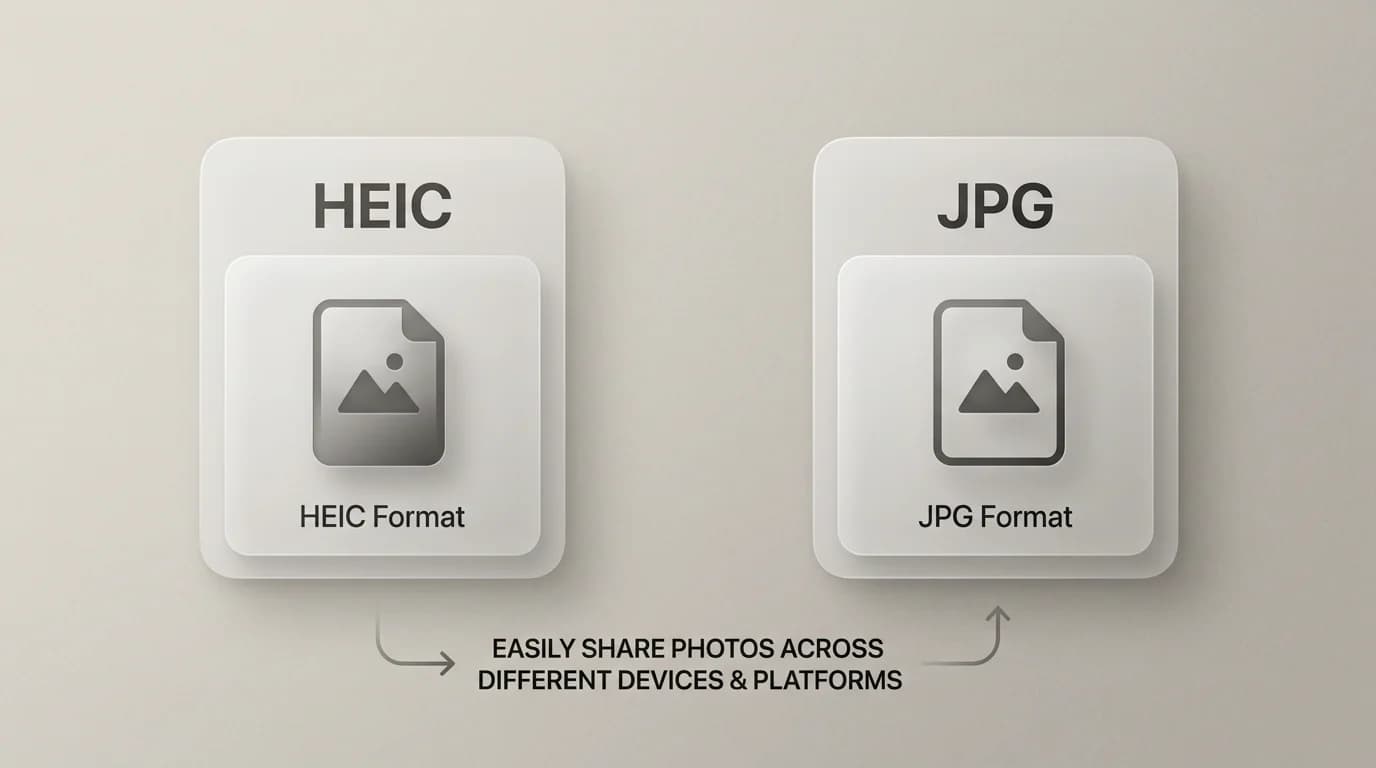
Images in this post are generated with AI.
HEIC works fine for iPhone photos. It can beat JPG on size at similar quality, which saves space on the phone. The friction shows up later: older Windows boxes, picky upload forms, relatives who double-click and get a shrug from the OS.
JPG is still the lowest-friction photo format for sharing across unknown computers. That does not mean you should set your phone to JPG forever. It means you should know when to convert a copy for the receiver, without mangling your originals.
What HEIC is doing for you on an iPhone
Apple uses HEIC (and related HEIF family ideas) to store photos efficiently. In day-to-day life, you may never notice until you AirDrop to someone or try to upload a raw HEIC somewhere that only wants JPG.
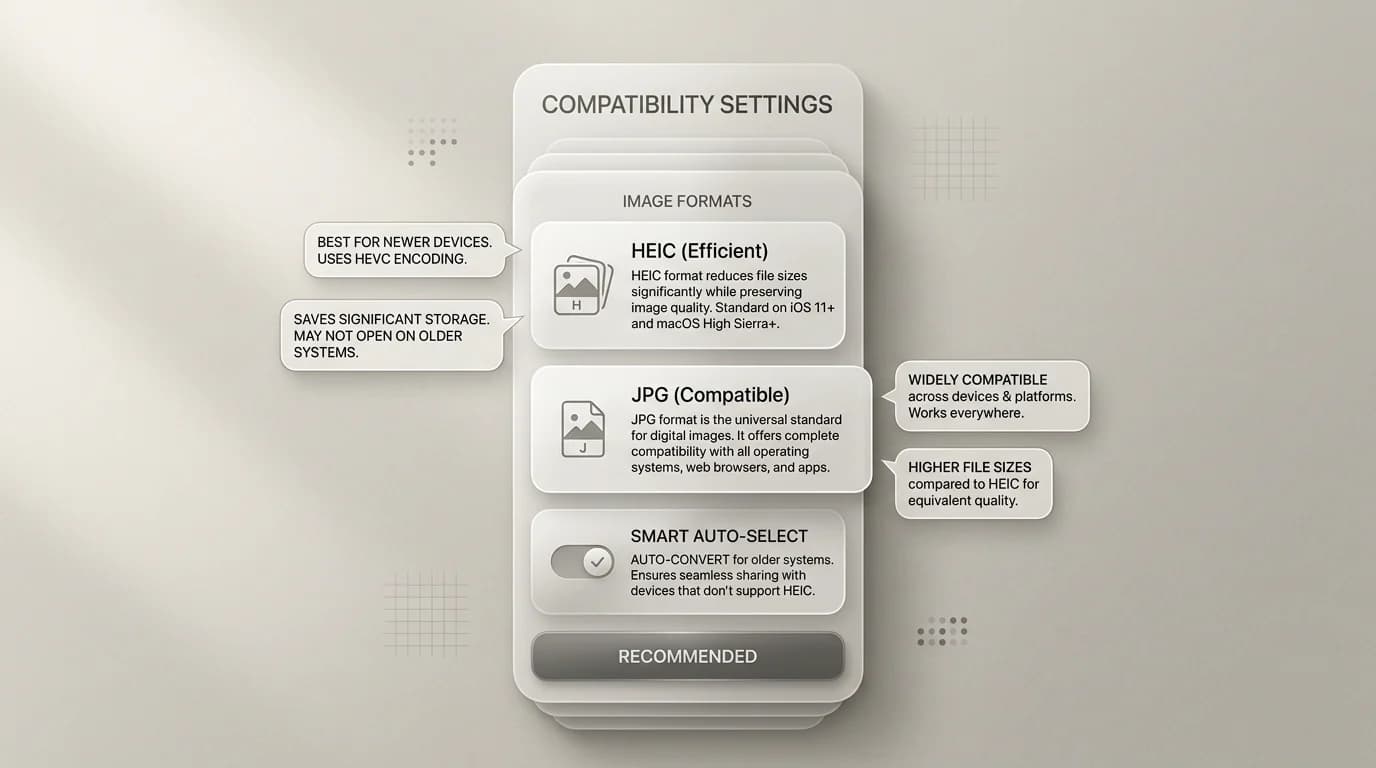
Why JPG still shows up everywhere
- Upload forms often whitelist JPG and PNG first.
- Older desktop viewers recognize JPG without extra codecs.
- Some email systems recompress anyway, so starting small can help.
HEIC versus JPG in one table
| Topic | HEIC | JPG |
|---|---|---|
| Typical iPhone default | Common | Optional setting |
| Cross-platform sharing | Sometimes annoying | Usually smooth |
| Transparency | Not the usual reason people use it | No |
| Editing flexibility | Depends on toolchain | Universal but lossy if re-saved |
Should you change your iPhone to shoot JPG?
The tradeoff is real. Most Compatible mode in camera settings means JPG photos and MOV video. High Efficiency keeps HEIC and saves storage. If most of your photos stay on iCloud and get shared to other Apple devices, you probably do not need to switch. If you regularly email originals to mixed audiences, send files to clients, or upload to forms that reject HEIC, Most Compatible is the lower-friction setting and the storage hit is real but manageable.
I personally keep High Efficiency on and convert copies when I need JPG. Originals stay tidy and compact. The people I share with get something they can open. That said, if you keep landing in the "why can't they open my photo" conversation, switching to Most Compatible is a perfectly reasonable call.
Keeping originals and working with copies
HEIC to JPG conversion looks fine in almost every practical case because you are starting from a high quality capture. The HEIC efficiency advantage disappears in the JPG copy, and any multi-frame metadata from Live Photos does not carry over. For sharing, printing, and archiving with non-Apple people, that trade is invisible.
- Keep HEIC originals on device or in iCloud unless you have a specific reason to clear them.
- Convert a copy when you need JPG for a form, email, or cross-platform handoff.
- Avoid converting HEIC to JPG to HEIC or similar round-trips that stack losses without benefit.
- For editing in a tool that does not support HEIC natively, export to PNG if you need lossless flexibility.
What Windows does with HEIC in 2026
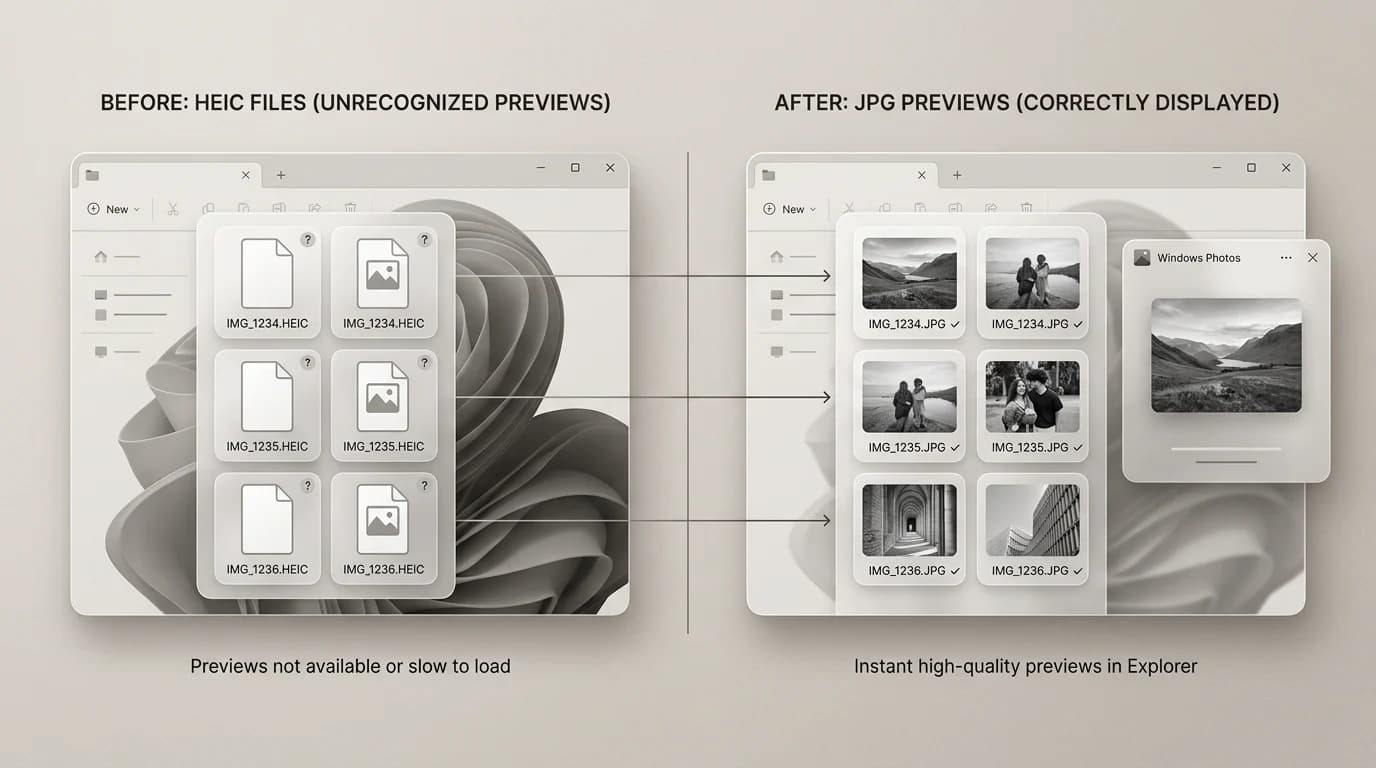
Windows 11 can open HEIC if the right codec is installed from the Microsoft Store. A lot of people do not have it, and the error message is confusing. If you are sending to someone on Windows and cannot confirm their setup, JPG is still the easy choice. Expecting someone to install a codec to view a photo is optimistic.
When you need a JPG handoff, use HEIC to JPG. When you need a PNG for transparency workflows, try HEIC to PNG. If you also want web publishing copies, you can pair HEIC conversion with JPG to WebP after you have a JPG intermediate you trust.
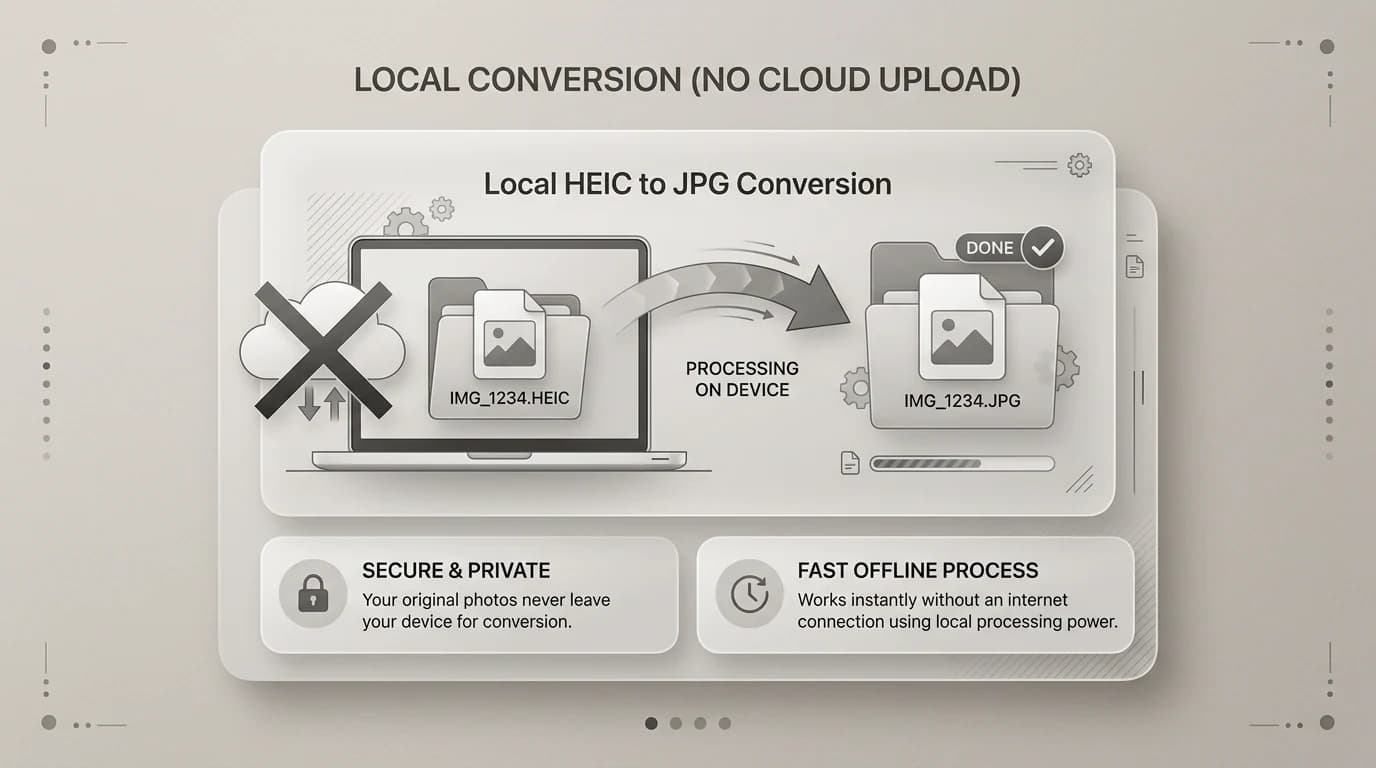
One practical habit
When I finish a shoot or scan session, I do a quick batch export of anything that might go to someone outside my usual Apple setup. Two minutes at the end of the job saves the explain-why-your-photo-does-not-open conversation later. The HEIC originals stay on the device. The JPGs go in a simple share folder until they are delivered.